
TL;DR
Connect Google Search Console to Prerender.io from your Integrations page, sign in with the Google account that owns your GSC properties, and select the domains to sync. This turns on Search Performance, which shows how the pages Prerender.io served are performing in Google Search: impressions, clicks, and coverage gaps, all in one place. Initial sync takes minutes to a few hours for most sites, and up to a few business days for very large ones.
ℹ️ Search Performance is a different connection from the sitemap-sync Google Search Console integration. Connecting here only activates Search Performance. If you're looking for the sitemap-sync setup instead, see How do I connect Google Search Console to Prerender.io?.
Step 1: confirm your plan and domain meet the requirements.
Search Performance requires a Pro or Enterprise Plus subscription. It isn't available on Starter or Growth plans. You also need at least one domain in your Prerender.io dashboard that matches a verified property in your Google Search Console account, since Search Performance only connects domains that exist in both systems.
Pro plans connect one domain. Enterprise Plus plans connect up to five domains.
Step 2: open the Integrations page and start the connection.
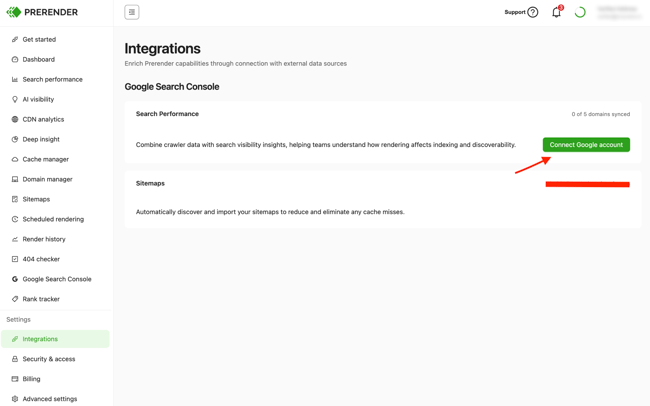
In your Prerender.io dashboard, select Integrations from the left navigation under Settings. In the Google Search Console section, find the Search Performance card and select Connect Google account.
Step 3: sign in with your Google account.
Sign in with the Google account that owns your GSC properties, then grant the requested permissions. Prerender.io needs read access to your Search Console data to pull impressions, clicks, and CTR for the URLs you review.
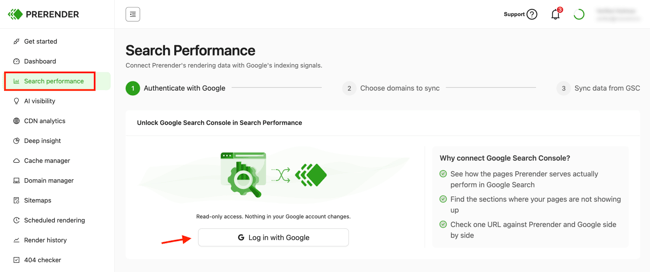
ℹ️ Only one Google account can be connected to your Prerender.io account at a time. If your GSC properties are spread across multiple Google accounts, sign in with the one that gives access to the domains you want to review.
Step 4: select the domains to connect.
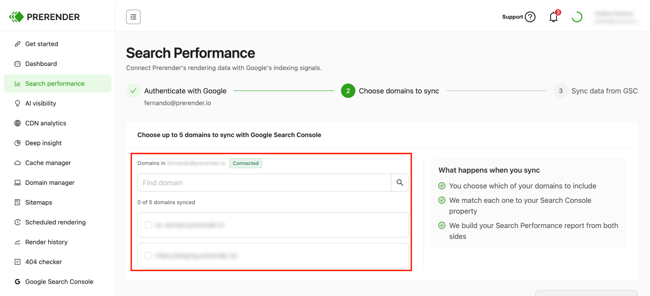
After you sign in, you'll see the domains eligible to connect, the ones that exist in both your Prerender.io account and your Google Search Console properties. Select the domain (Pro) or up to five domains (Enterprise Plus) you want to review, then select Activate.
Step 5: wait for the first sync.
After activation, Prerender.io starts syncing your data. The initial sync retrieves up to 28 days of history from Google Search Console.
Small to mid-sized sites usually sync in minutes to a few hours. Larger sites, hundreds of thousands of URLs and up, can take up to a few business days. Sync timing depends on the size of your site and Google's API load quotas, and you'll see a syncing state on the Search Performance page while it runs.
After the initial sync, one day of history is added per successful daily sync until the window reaches 30 days. From then on, Prerender.io maintains a rolling 30-day period. Once the first sync completes, the report appears with the KPI cards, Pages tab, and Performance by path.
Step 6: verify your connection is working.
Open the Search Performance page and check that data is populating.
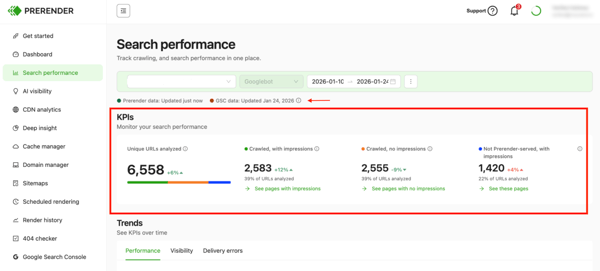
✅ Your connection is working when the Search Performance page shows the KPI cards with data and the freshness indicators at the top show recent timestamps.
If the page stays empty or shows an error after the expected sync time, see Why isn't my Search Performance connection working?.
If you have multiple domains (Enterprise Plus)
If you're on Enterprise Plus and you've connected multiple domains, you'll see a domain selector at the top of the Search Performance page. Search Performance shows one report per domain. Switch between them using the selector.
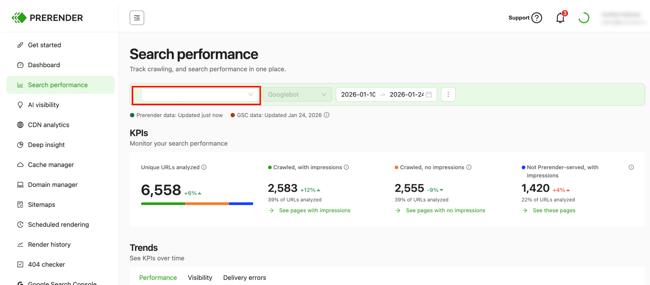
If any of your connected domains has a sync or authorization problem, the selector visually flags that domain, so you can see which one needs attention before selecting it.
Reconnecting if your authorization expires
If your Google authorization expires or is revoked, Prerender.io shows a notice on the Search Performance page and on the Integrations page prompting you to reconnect. Select Reconnect Google account to reauthorize with the same Google account.
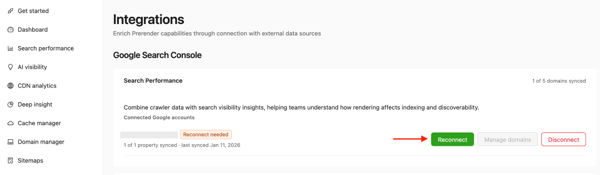
While the connection is broken, Prerender.io retains the data already synced. Once you reconnect, syncing resumes.
Disconnecting Google Search Console
You can disconnect Google Search Console from the Integrations page. Disconnecting stops future syncs and removes the connection.
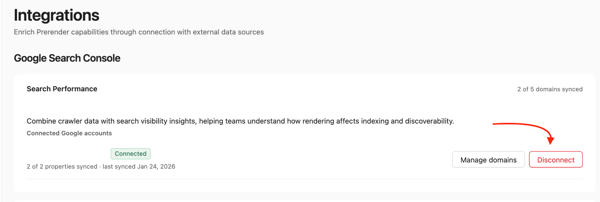
Your already-synced Search Performance data is retained under the current Search Performance retention policy. Disconnecting doesn't delete your history. See Why isn't my Search Performance connection working? for details.
Related articles
- Understanding Search Performance in your Prerender.io dashboard
- Why isn't my Search Performance connection working?
- How do I connect Google Search Console to Search Performance?
💬 Still need help? If you have questions about connecting Google Search Console to Search Performance, our support team can help. → Contact us at support@prerender.io