
TL;DR
Search Performance is a Google Search Console integration inside your Prerender.io dashboard that cross-checks your crawl data against your Google Search Console performance. It shows you which pages Prerender served that are showing up in Google Search, which ones aren't, and which pages have impressions in Google that Prerender never served, all in one place.
Why this matters
It's hard to see how your crawl activity concretely ties back to your performance in Google Search. Prerender.io shows what your site served to Googlebot. Google Search Console shows what actually appeared in Google Search. Neither on its own answers the question that matters: of everything Prerender served, what's actually reaching searchers on Google?
Answering that usually means switching between GSC and Prerender.io and trying to line the two up yourself. Search Performance brings your GSC data into your Prerender.io dashboard, so you can see coverage gaps, spot pages that aren't showing up, and prioritize what to review, all in one view.
Where to find it
Open your Prerender.io dashboard and select Search Performance from the left navigation.
If you haven't connected Google Search Console yet, go to the Integrations page and connect it there. See How do I connect Google Search Console to Search Performance? for the connection steps.
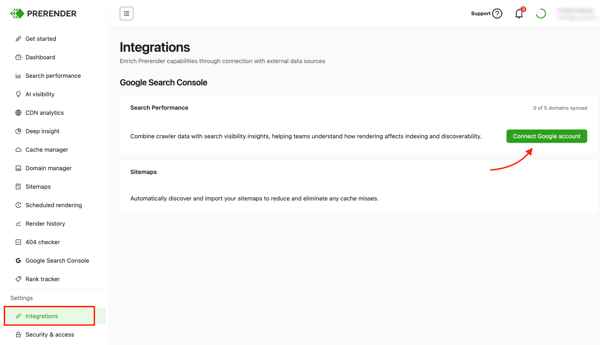
How to navigate Search Performance
Your reporting period
Search Performance shows data for a fixed reporting window of up to 30 days. You can't change the window length.
The window grows day by day. Your first sync retrieves up to 28 days of history. After that, one day is added per successful daily sync until it reaches 30 days, then it becomes a rolling 30-day window.
Google Search Console data may be delayed by at least 48 hours, so recent activity may not appear yet.
Two freshness indicators at the top of the page tell you how current each source is. Prerender.io data shows the timestamp of the last successful update from Prerender.io. GSC data shows the latest available Google Search Console date.
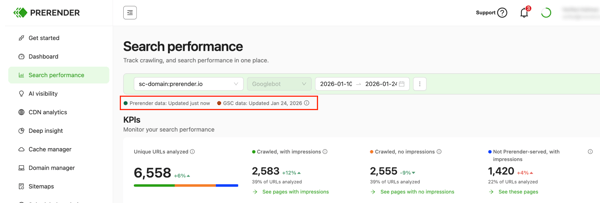
The KPI card row
At the top of Search Performance, four cards give you a one-glance summary. The first card is the parent total. The three cards below it split the URLs into three mutually exclusive groups that always add up to the parent, so you can reconcile the numbers yourself.
- Unique URLs analyzed: the total number of unique URLs observed during the reporting period, combining URLs requested by Googlebot and served through Prerender.io (regardless of whether GSC recorded impressions for them) with URLs for which GSC recorded at least one impression. Counted once. This is the total population used for the three groups below.
- Crawled, with impressions: URLs served by Prerender.io that received at least one impression in Google Search Console during the reporting period. This is the overlap between Prerender.io-served URLs and URLs with recorded GSC impressions.
- Crawled, no impressions: URLs served by Prerender.io for which no impressions were recorded in the synchronized GSC Search Performance data during the reporting period. This is not necessarily an indexing problem.
- Not Prerender-served, with impressions: URLs with GSC impressions during the reporting period that Prerender.io did not serve. This is not automatically a problem. It can include sections you intentionally keep outside Prerender.io.
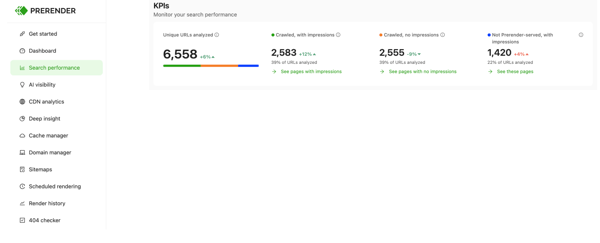
Select the arrow on any of the KPI cards to jump into the Pages tab filtered to that group. For a deeper explanation of each card and why the numbers may differ from what you see in Google Search Console directly, see Understanding the Search Performance KPI cards
The Pages tab
The Pages tab shows the individual URLs behind the KPI cards. It's organized into tabs so you can focus on one group at a time: Top, With impressions, No impressions, Delivery errors, and Not Prerender-served.
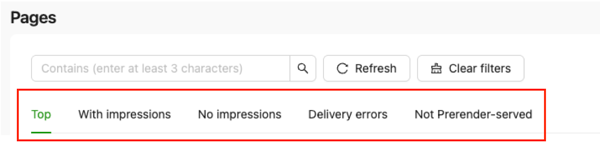
For each URL you can see impressions, clicks, CTR, the HTTP status Prerender.io returned, and when Googlebot last hit it. You can sort any column, filter by HTTP status, and search within the URL list.
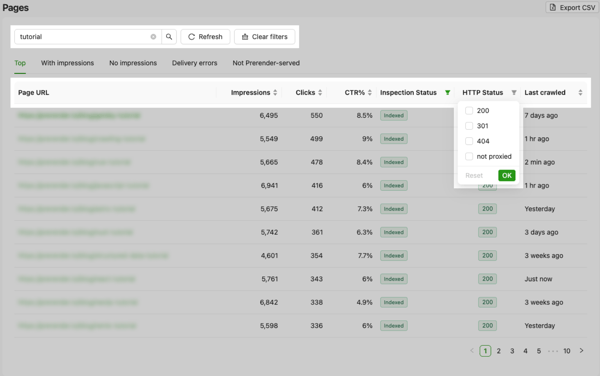
For full details on each tab, column, and how to interpret partial data, see Understanding the Pages tab in Search Performance.
Performance by path
The Performance by path table takes the same three groups and rolls them up by the first path segment of each URL. Each row is a first-level path, like /docs/, /blog/, or /property/. This helps you find which sections of your site need attention, not just which individual pages.
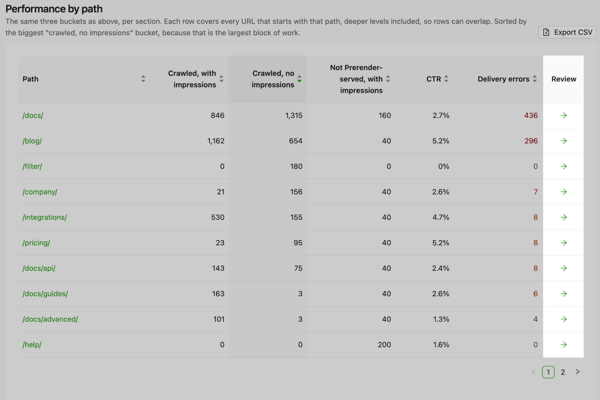
The default sort order is Crawled, no impressions descending, so the sections with the biggest gaps come first. For full details, see Understanding Performance by path in Search Performance.
What Search Performance doesn't tell you
Search Performance is a diagnostic layer. It's designed to help you find coverage gaps and prioritize what to review, not to replace Google Search Console or a dedicated SEO platform.
It doesn't show search rankings or position data, the root cause for why a page has no impressions, traffic or revenue attribution, or what changed since a previous reporting period. Google Search Console remains the source of truth for those. If you're troubleshooting a broken GSC connection rather than interpreting the data itself, see Troubleshooting your Search Performance connection.
Who has access
Search Performance is available to Pro and Enterprise Plus customers. Pro connects one domain. Enterprise Plus connects up to five domains, and you view reports one domain at a time using the selector at the top of the page.
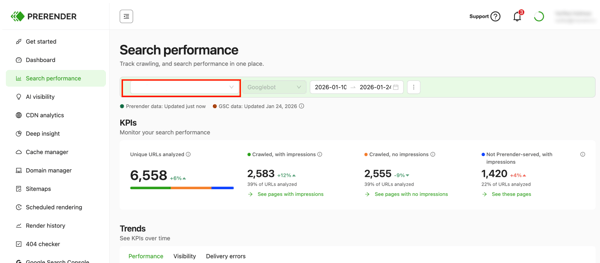
Open Search Performance from the left navigation in your Prerender.io dashboard to see how your crawl activity lines up with Google Search. If you haven't connected Google Search Console yet, visit the Integrations page to get started.
Related articles
- How do I connect Google Search Console to Search Performance?
- Understanding the Search Performance KPI cards
- Understanding the Pages tab in Search Performance
- Understanding Performance by path in Search Performance
💬 Still need help? If you have questions about Search Performance or how to interpret your data, our support team can help. → Contact us at support@prerender.io