
TL;DR
The Pages tab is the URL-level view behind your Search Performance KPI cards. It lists every URL Prerender served or that Google Search Console recorded impressions for, with per-URL data on impressions, clicks, CTR, HTTP status, and when Googlebot last hit each page. Use it to investigate a specific URL, spot delivery errors, or find pages Google is showing that aren't going through Prerender.
Why the Pages tab matters
Your KPI cards tell you how many pages fall into each group. The Pages tab tells you which ones. That's the difference between knowing you have 400 pages with no impressions and being able to open the list, sort it, and start fixing them.
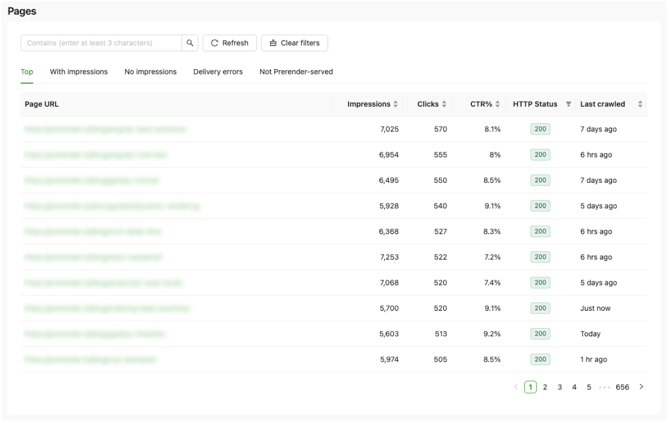
Five tabs split your URLs into groups so you can focus on one problem at a time. Sort any column, filter by status, and search within the list to zero in on the pages you want to investigate.
What does each Pages tab show?
Each tab is a specific slice of your URLs. The tabs line up with the KPI cards — clicking a group card on the KPI row takes you straight to the matching tab.
- Top — URLs with at least one Google Search impression, ordered by impressions descending. Includes both Prerender-served and not-Prerender-served pages. Use this to see your top performing pages at a glance.
- With impressions — the URLs behind the "Crawled, with impressions" card. Prerender-served pages that received impressions in the reporting period.
- No impressions — the URLs behind the "Crawled, no impressions" card. Prerender-served pages with no impressions recorded.
- Delivery errors — URLs Prerender served with a non-200 HTTP status. These are pages where something went wrong. Fixing them makes sure Googlebot gets a working page.
- Not Prerender-served — the URLs behind the "Not Prerender-served, with impressions" card. Pages Google recorded impressions for that Prerender didn't serve.

What do the Pages columns mean?
For every URL in the table:
- Page URL — the URL, normalized. Select it to open the page in a new tab.
- Impressions — how many times Google showed this URL in Search results during the reporting period from Google Search Console.
- Clicks — how many times someone clicked it in Google Search from Google Search Console.
- CTR — clicks divided by impressions from Google Search Console.
- Inspection status — Google's index verdict for this URL, if it's been inspected. Not every URL is inspected — see below.
- HTTP status — the response code Prerender returned when Googlebot last hit this URL. From Prerender.
- Last crawled — when Googlebot last requested this URL from Prerender.
What's the difference between a zero and a dash?
Some cells show a number (like 0 or 1,234) and some show a dash (—). They mean different things.
- A number, including
0— the data source has a confirmed value.0impressions means Google recorded this URL but recorded exactly zero impressions in the reporting period. - A dash (
—) — the data source has no value for this URL. It's not zero. It's "not available."
This distinction changes how you investigate:
0impressions on a page you served → Google saw the page but didn't show it to anyone. Worth checking why.—on a page you served → Google may not know about it yet, or it's too new to appear. A different investigation.
Dashes never convert to zeros. When you sort, URLs with dashes sort after all numeric values in both ascending and descending order — so you don't accidentally treat "no data" as "worst performing."
How do I sort, search, or filter the Pages tab?
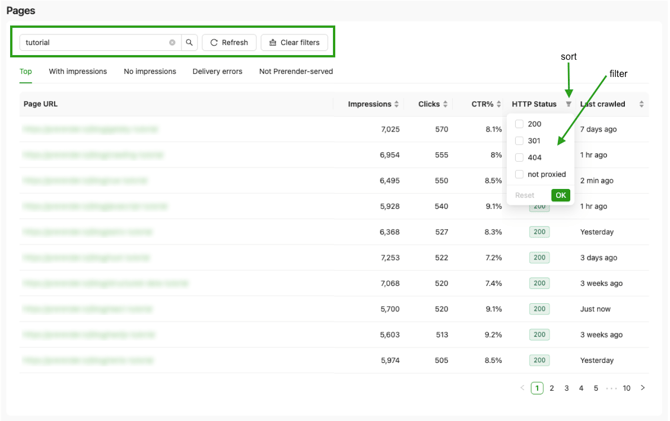
- Sort any column by selecting the column header. Each click toggles the direction between ascending and descending. URLs with dashes always sort after numeric values.
- Search for a URL using the search field. Enter three or more characters — Prerender matches any URL containing what you typed.
- Filter by HTTP status or Inspection status using the dropdowns. You can combine filters and search together.
Selecting Clear filters returns the tab to its default state.
How does Pages know what to show?
If you drilled into Pages from a KPI card or from a path row in Performance by path, Pages applies the matching tab and filters automatically. This preserves your investigation — you don't have to re-filter each time. For example:
- Click the "Crawled, no impressions" KPI card → land on the No impressions tab.
- Click Review on
/blog/in Performance by path → land on the tab most relevant to that section, filtered to that path.
What if a tab is empty?
If a tab has no URLs to show — for example, when you have no delivery errors — you'll see an empty state message instead of an empty table.
Try it out
Ready to explore your URL-level data? Log in to your Prerender dashboard and open Search Performance to view the Pages tab for your connected domains. If you haven't connected Google Search Console yet, head to the Integrations page to get started.
Related articles
- What do the Search Performance KPI cards show?
- Understanding Performance by path in Search Performance
- Understanding Search Performance in your Prerender dashboard
If you have questions about the Pages tab or how to interpret a specific row, our support team can help.
→ Contact us at support@prerender.io