
TL;DR
Your tax ID lives on the billing address in your Prerender dashboard—open Billing → Billing Info → Billing Address, select your country first so the correct format is validated, then enter your tax ID and save. The change applies to every invoice Prerender generates from that point forward. The whole update takes under two minutes.
Step 1: Open the Billing section of your Prerender dashboard
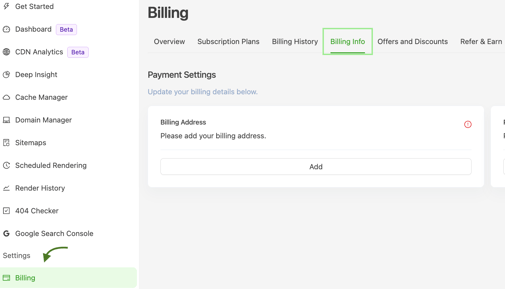
Log in to your Prerender dashboard and click Billing in the left navigation. This is where every billing detail lives—your plan, invoices, payment method, and tax information.
Step 2: Open Billing Info
Inside the Billing section, select Billing Info. This is the page where your billing address and tax ID are stored together.
Step 3: Add or edit your billing address
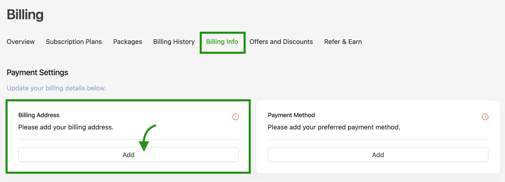
Click Add if you haven't set one up yet, or open your existing address to edit it. Your tax ID is stored alongside your billing address, so this form has to be open before you can update it.
Step 4: Enter your country and tax ID, then save
Choose the country where your business is registered, enter your tax ID in the field provided, and click Update to save your changes.
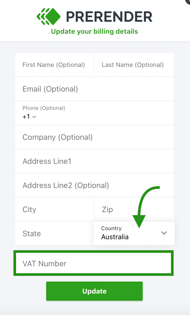
ℹ️ The accepted tax ID format depends on the country you select—for example, EU VAT numbers, US EIN, UK VAT, or AU ABN. Pick the country first so the correct format is validated.
Step 5: Verify that your tax ID is saved
Reopen your billing address. The country and tax ID should now be displayed on the saved address. From this point forward, your tax ID will also appear on every new invoice Prerender generates.
✅ Your tax ID is set up correctly when it shows on the saved billing address page and on the next invoice you download from your dashboard.
ℹ️ If the tax ID doesn't appear on a fresh invoice, double-check the country you selected—some countries require a specific format that won't save if it doesn't match. See Invoices if you need to re-download an invoice after the update
Related articles
- How do I estimate my monthly render volume and choose a plan?
- How does invoicing and payment work in Prerender.io?
- Subscription plan history
- How do I cancel my Prerender.io subscription?
💬 Still need help? If your tax ID isn't accepted, doesn't appear on your invoice, or needs to be applied retroactively, our billing team can sort it out. → Contact us at support@prerender.io