
I
TL;DR
If your site serves different content to desktop and mobile viewports, Prerender.io can cache and serve both versions independently. The service detects device type from the User-Agent string and returns the matching snapshot to AI crawlers and search engines. Mobile rendering is on by default and can be disabled in Advanced Settings > Rendering Devices; desktop rendering is always on. Keep in mind that with mobile rendering enabled, each page counts as two renders against your monthly quota: one for desktop and one for mobile.
Overview
If your website is adaptive and serves different markup for desktop and mobile viewports, Prerender.io can store and deliver both versions. Desktop and mobile rendering lets you tailor what AI crawlers and search engines see on each device, instead of always serving the desktop snapshot. Both modes are on by default, but mobile rendering can be disabled if your site does not have a distinct mobile version.
How it works
Prerender.io decides which snapshot to serve based on the User-Agent string on the incoming request:
- Mobile crawlers receive the mobile version of the page.
- Desktop crawlers receive the desktop version of the page.
📝 If mobile rendering is disabled, Prerender.io serves the desktop snapshot even when the request comes from a mobile crawler. Desktop rendering is the default and cannot be disabled.
Why this matters for SEO and AI visibility
Both versions of your page are cached, which means AI crawlers and search engines index the correct snapshot for the device they emulate. Google's mobile-first indexing in particular relies on the mobile version of your content, so if your mobile markup is meaningfully different from desktop, keeping mobile rendering enabled is usually the right call.
Render usage with mobile rendering enabled
When mobile rendering is on, each page is rendered and cached twice, once for desktop and once for mobile. That means each cached page counts as two renders against your monthly Prerender.io quota, not one. If you have 1,000 URLs cached with mobile rendering enabled, your total is 2,000 cached entries.
If your site does not actually serve different content on mobile, you can disable mobile rendering to halve this count. If your mobile markup is genuinely different, the extra renders are usually worth it for indexing accuracy.
How to disable mobile rendering
Mobile rendering is enabled by default. Disable it only if your site does not have a distinct mobile version.
Step 1: log in to your Prerender.io dashboard.
Open the Prerender.io dashboard and sign in. You will need account owner or admin access to change rendering settings.
Step 2: open Advanced Settings.
From the main menu, go to Advanced Settings.
Step 3: find Rendering Devices and turn off Mobile Optimized Rendering.
Scroll to the Rendering Devices section and locate Mobile Optimized Rendering. Slide the toggle to the left to turn it off.
Step 4: apply your change.
Scroll to the bottom of the page and click Apply.
✅ Mobile rendering is disabled when the Mobile Optimized Rendering toggle stays off after a page refresh, and new mobile-bot requests are served the desktop snapshot from CDN Analytics.
How to verify a mobile bot request reached Prerender.io
- Emulate a mobile bot request following the steps in how to test your site after validating the integration.
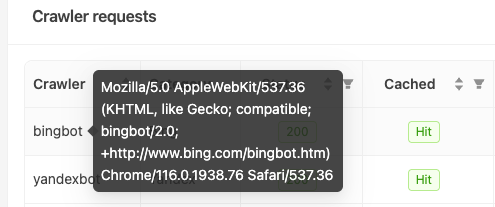
- In your Prerender.io dashboard, open the CDN Analytics menu and look for the request, including the bot's User-Agent and the device it was served as.
Related: per-request device control with X-Prerender-Device-Type
If you need more control than the global Mobile Optimized Rendering toggle, you can send the X-Prerender-Device-Type header on individual requests to Prerender.io. The header accepts either Mobile or Desktop (case-insensitive) and overrides the device that would otherwise be detected from the User-Agent.
For setup and usage details, see Advanced device type management.
Additional notes
- You can pre-cache the mobile version of a page using the
/recacheendpoint and setting"adaptiveType": "mobile"in the request body. See the Prerender.io REST API article for the full request format. - With mobile rendering enabled, the Cache Manager may show the same URL twice, once with a desktop icon and once with a mobile icon. That is expected behaviour, not a duplicate.
Get support
If desktop and mobile snapshots are not being served correctly, mobile rendering will not turn on or off, or CDN Analytics shows the wrong device type:
- Email support@prerender.io
- Or submit a ticket from your Prerender.io dashboard
To help us resolve your issue as quickly as possible, please include:
- A few example URLs where the wrong device snapshot is being served.
- The User-Agent string you tested with.
- A screenshot of CDN Analytics showing the request.
Sharing these details up front helps our team diagnose the problem and get you back on track faster.
Related articles
- What can I do with the Prerender.io REST API?
- Advanced device type management
- User Agent overview
- How to cache specific URLs
- Plan options and how to find the best plan
💬 Still need help?
If you have questions about device-specific rendering, your CDN Analytics, or how the User-Agent header is handled, our support team can help.
→ Contact us at support@prerender.io