
TL;DR
To verify your Prerender.io integration, either simulate a Googlebot visit in Chrome DevTools and check for the x-prerender-request-id response header, or run a one-click domain check from your Prerender.io dashboard. Both methods confirm that AI crawlers and search engines are receiving fully rendered HTML. The check takes under two minutes.
Method 1: use Chrome DevTools
Prerender.io works by detecting crawlers through their user agent and serving them a fully rendered HTML version of your page. To verify this behavior, you simulate a crawler visit by switching your browser's user agent to Googlebot, then inspect the response headers.
Step 1: navigate to the page you want to test.
Open Chrome and go to the URL you want to verify.
ℹ️ Chrome is recommended for this method. The same steps work in other browsers with developer tools, but menu labels may differ.
Step 2: open Chrome DevTools.
- Windows: Press
Ctrl + Shift + J - Mac: Press
Option + ⌘ + J or fn + f12
Step 3: open the Network Conditions panel.
- Windows: Press
Ctrl + Shift + P - Mac: Press
Command + Shift + P
Type "Show Network Conditions" and select it from the menu.
Step 4: set your user agent to Googlebot.
In the Network Conditions tab:
- Uncheck Use browser default.
- Select Googlebot from the dropdown.
If your integration uses a custom bot allowlist, choose a user agent that matches your config instead.
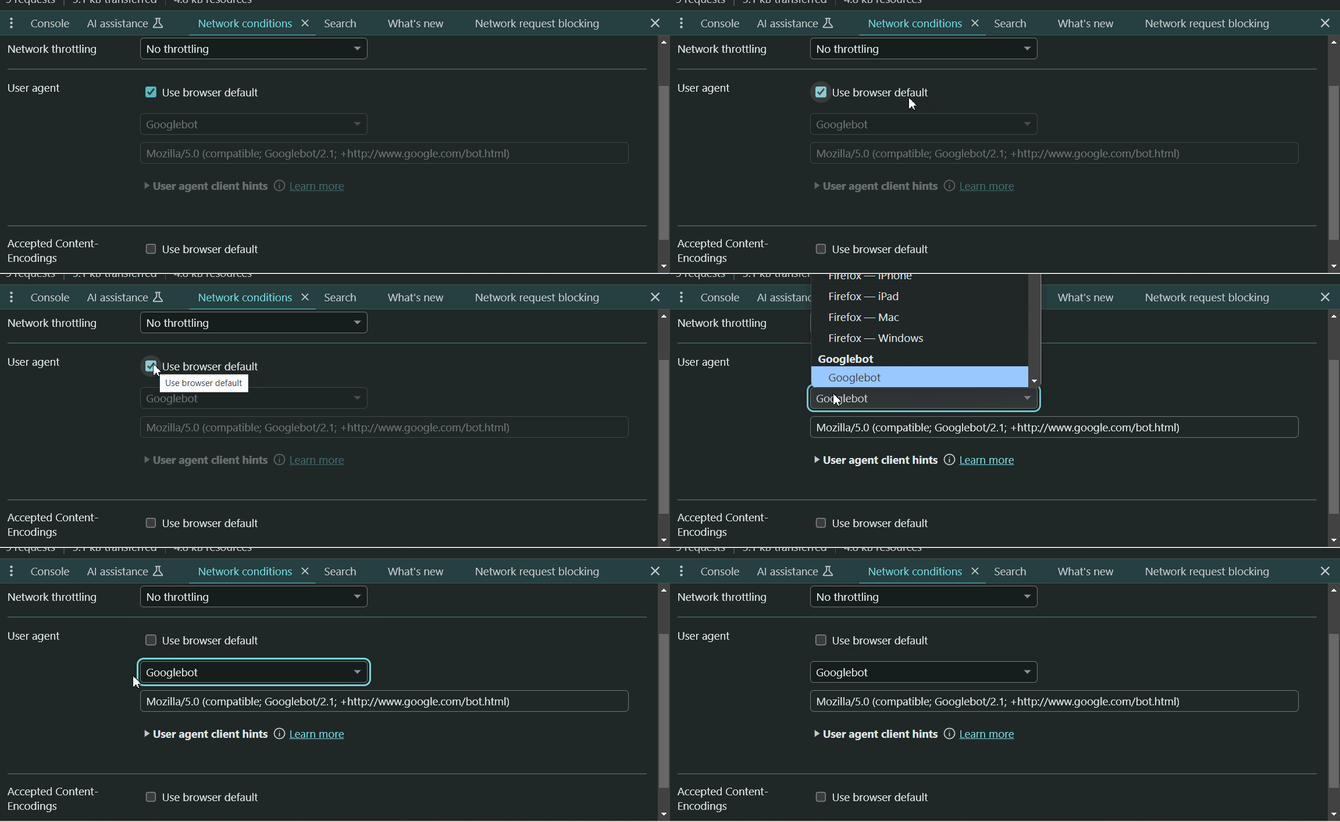
Step 5: reload the page and check for the response header.
- Refresh the page.
- Open the Network tab in DevTools.
- Select the main document request (the URL you visited).
- Look for
x-prerender-request-idin the Response Headers section.
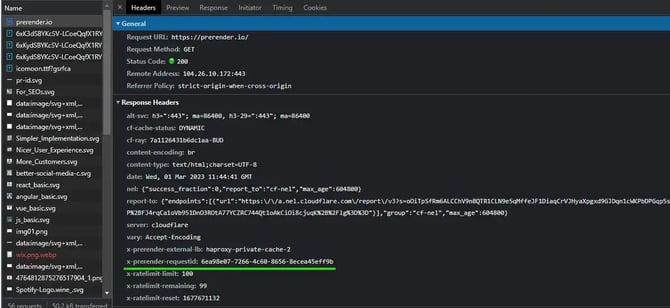
✅ Integration confirmed. If x-prerender-request-id appears in the response headers, Prerender.io is correctly intercepting crawler requests and serving rendered HTML. New entries will appear in your Prerender.io dashboard under CDN Analytics within 2 to 5 minutes.
ℹ️ If the header is not present, wait a few minutes and refresh—changes can take a little time to propagate. If it still does not appear, see Troubleshooting your Prerender.io integration and best practices.
ℹ️ Bot request blocked? Some servers or CDNs block simulated bot requests. If you are not seeing the expected response, try selecting a different user agent in DevTools, or add your test user agent to your integration: How do I add AI crawlers and bots to my integration?.
Method 2: use your Prerender.io dashboard
Your Prerender.io dashboard has a built-in domain verification tool. Both options below run the same check—use whichever you have open.
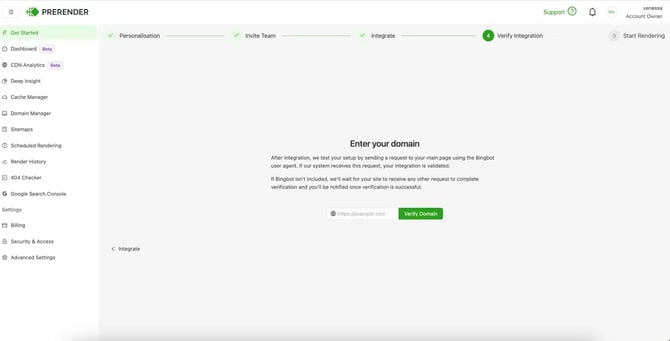
Option A: verify via the Get Started tab.
- Click Get started in the left sidebar of your Prerender.io dashboard.
- Navigate to the Verify Integration step.
- Enter your domain and click Verify Domain.
Option B: verify via Domain Manager.
- Click Domain Manager in the left sidebar of your Prerender.io dashboard.
- Add your domain and submit.
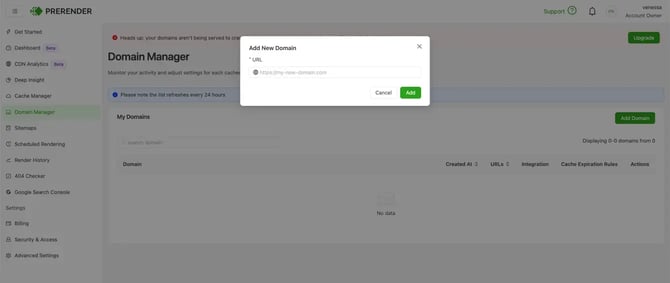
✅ Integration confirmed. A green status indicator confirms that Prerender.io is correctly intercepting requests for your domain.
ℹ️ Not sure your integration is set up correctly in the first place? Nexus, your AI integration assistant, is built into your Prerender.io dashboard. Describe your tech stack and Nexus will walk you through setup and verification step by step.
Related articles
- How do I add AI crawlers and bots to my integration?
- How to view cached versions of your pages
- Troubleshooting
- How Prerender.io works
💬 Still need help? If you're having trouble verifying your integration or the x-prerender-request-id header is not appearing, our support team can help. → Contact us at support@prerender.io