
TL;DR
Crawler visits drop when crawlers meet slow responses, blocks, or content that rarely changes. Typical causes are a low cache hit ratio, a CDN or WAF that blocks Prerender.io, a crawler missing from your integration's bot list, a robots.txt problem on your site, and a cache that refreshes less often than your content changes. The steps below show you how to diagnose each cause in your Prerender.io dashboard and fix it.
Why crawler visits drop
Crawlers adjust how often they visit based on how your site responds and how often it changes. Googlebot documents this behavior publicly: slow responses, server errors (5xx), and rate limiting (429) lower how much it crawls, and low demand means fewer visits even when your server is healthy. Read Google's crawl budget guide for the details.
Other AI crawlers and search engines publish less detail, but slow responses, errors, and blocks may reduce their visits too. Crawlers decide when to return, so Prerender.io cannot set their visit rate. You can remove the reasons they have to stay away, and that is what the steps below do.
Step 1: confirm the drop and note when it started.
Open your Prerender.io dashboard and set the date range to cover the weeks before and after the drop. The Pages Crawled card shows the change compared with the previous period. Use the crawler filter to view crawler categories or individual crawlers such as GPTBot, ClaudeBot, Googlebot, and BingBot.
Then open CDN Analytics for request-level detail, including status codes, cache hits and misses, and response times for each URL.
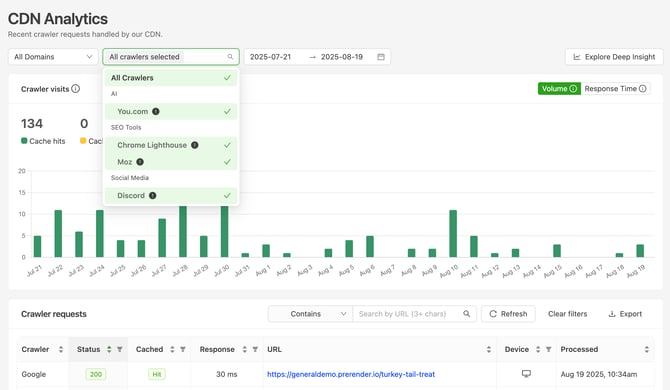
Note the date the drop began and whether it affected all crawlers or only one. Use this table to decide where to go next.
| What you see | Likely cause | Go to |
|---|---|---|
| Cache hit ratio fell, or average crawl time rose | Slow responses caused by cache misses | Steps 2 to 4 |
403, 409, or 422 status codes appeared or increased |
A CDN, WAF, or firewall blocks Prerender.io | Step 5 |
429 status codes appeared or increased |
You reached your trial render limit, or rate limiting sits in front of your origin | Step 5 |
| Only one crawler dropped | The crawler is missing from your integration's bot list, a robots.txt rule blocks it, or its own demand fell |
Steps 6 and 7 |
| Cache hit ratio looks healthy, but your content changes often | Cache refreshes less often than your content changes | Steps 8 and 9 |
ℹ️ Compare Prerender.io's numbers with a second source, such as your server logs. For Googlebot, the Crawl Stats report in Google Search Console shows requests, response times, and host availability.
ℹ️ Not every drop is a problem. If you recently removed duplicate URLs, fixed crawl traps, or consolidated pages, crawlers may visit less because there are fewer URLs to visit.
Step 2: check your cache hit ratio and average crawl time.
Slow responses give crawlers a reason to visit less. When a crawler requests a page that is not cached, Prerender.io renders it on the fly before serving it, and that takes longer than serving a cached page. A low cache hit ratio therefore usually means slower responses.
In your dashboard, compare Cache Hit Ratio and Average Crawl Time before and after the drop. See Understanding your Prerender.io dashboard if you need a refresher on each metric.
If the cache hit ratio fell, the next two steps find out why. For a quick first improvement, add an accurate sitemap so Prerender.io can cache your URLs before crawlers request them.
Step 3: find which status codes your URLs render most often.
Prerender.io caches only pages that return a 200 status code. URLs that return 3xx, 4xx, or 5xx are never cached, so every crawler request to them triggers a fresh render. That lowers your cache hit ratio and slows responses.
In CDN Analytics, use the filter on the HTTP Status Code column to show one non-200 code at a time, starting with 404. Look for URLs or URL patterns that appear again and again.
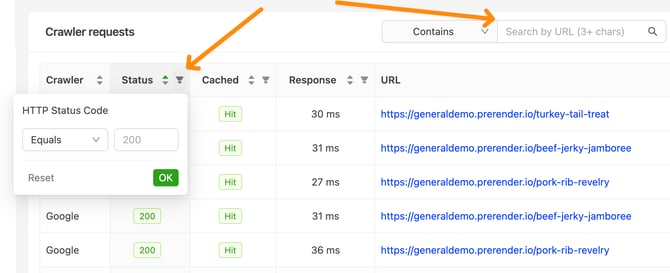
If a URL should work, fix the response at your origin so it returns 200. If a URL should no longer exist, or crawlers should never request it, go to the next step. See Prerender.io status codes explained for what each code means.
Step 4: ignore URL patterns that do not need rendering.
Every URL that crawlers request but that does not need to appear in AI-generated answers or search results adds rendering work. Ignoring those URLs gives Prerender.io more room to serve the pages that matter from cache.
In your dashboard, go to Cache Manager > Caching Rules and choose one of these options:
-
Ignore query parameters. Prerender.io strips parameters such as utm_source, gclid, and fbclid so one cached page serves every variation.
-
Add URL pattern rules. Match URLs with a contains, wildcard, or regular expression rule. You can add up to 50 rules, and the rule tester shows which URLs a rule matches before you save it.
⚠️ URL pattern rules make Prerender.io return a 404 for matching URLs, which tells crawlers the page does not exist. Add a rule only for URLs you want out of AI & Search results.
ℹ️ Configuration changes can take up to 59 minutes to apply. Cached URLs that match a new rule will stay in your cache until the next recache cycle. If you need them removed sooner, clear them from your cache or contact support.
For the most precise control, filter requests in your integration so they never reach Prerender.io. How do I stop Prerender.io from caching certain URLs? explains the approach and links to the integration guides for your stack.
Step 5: allow Prerender.io's IP addresses in your CDN or WAF.
If a CDN, WAF, or firewall blocks Prerender.io, Prerender.io cannot fetch your pages. The affected URLs stop updating, and crawlers eventually receive an older snapshot or a non-200 response.
Signs of a block include 403, 409, or 422 status codes in CDN Analytics, or blocked requests from Prerender.io's IP ranges in your CDN or WAF logs. A 403 can also mean the Prerender.io token is missing from your integration.
A 429 on a trial means you reached the render limit, so upgrade your plan. On a paid plan, check rate-limiting rules in front of your origin.
Add Prerender.io's IP ranges to your allowlist, and allow the Sitemap Crawler as well. Follow How do I allowlist Prerender.io's IP addresses? for the current ranges and steps.
ℹ️ If your bot protection serves a CAPTCHA or JavaScript challenge (often shown as 422), disable it on the routes Prerender.io needs to reach. If your WAF also blocks the crawlers themselves, use each operator's verification method. For Googlebot, see Google's guide to verifying requests.
Step 6: check that your integration serves the crawler that dropped.
Prerender.io serves rendered pages only to crawlers whose user-agent string is on your integration's bot list. If a crawler is missing from that list, or a configuration change replaced the default list, its requests may no longer reach Prerender.io. Its visits then drop in your dashboard even though the crawler still visits your site.
Open your integration configuration and confirm the user-agent string for GPTBot, ClaudeBot, Googlebot, BingBot, or any other crawler that dropped is on the list. See How do I add AI crawlers and bots to my integration? for where the list lives on each platform
⚠️ In prerender-node, set('crawlerUserAgents', [...]) replaces the entire default bot list. Include every crawler you want to serve, or, on prerender-node versions after v3.8.2, use addUserAgents to append to the default list instead.
Step 7: check your robots.txt file.
Crawlers download your robots.txt file before they crawl your site. A broad Disallow rule, or a file that fails to load, can reduce visits from one crawler or all of them. Prerender.io does not read your robots.txt file, so you need to fix any problem on your own site.
Open https://YOUR_DOMAIN/robots.txt in a browser and check three things:
-
The file loads. It should return a 200 status code quickly, or a 404, which Google treats as no restrictions. If it returns a 5xx error or a 429, or times out, Googlebot stops crawling your site for the first 12 hours and keeps retrying, then uses its last good copy for up to 30 days. Other crawlers may behave differently.
-
No rule blocks the crawler that dropped. Look at each User-agent group, such as GPTBot, ClaudeBot, Googlebot, Bingbot, and *, and check its Disallow lines.
-
No rule blocks URLs you want crawled. A line such as Disallow: / blocks your entire site for the crawlers in that group.
After you fix the file, give crawlers time to fetch the new version. Googlebot generally caches robots.txt for up to 24 hours. See How Google interprets the robots.txt specification for how it handles errors and rule precedence.
Step 8: review your cache expiration setting.
Cache expiration is how long Prerender.io keeps a rendered page before it recaches it. If you publish or update content often and the setting is long, crawlers keep receiving older snapshots until the cache expires. They may see little reason to return.
In your dashboard, open Cache Manager, click Cache expiration, pick an interval within your plan's range, and click Apply. The allowed ranges are:
-
Starter: 24 hours to 7 days.
-
Growth: 12 hours to 14 days.
-
Pro and Enterprise Plus: 6 hours to 30 days.
Your new setting applies after the next recache of each URL, not to pages already in the cache.
ℹ️ A shorter expiration uses more of your monthly renders. Pick the longest interval that still keeps your content fresh enough. Pro and Enterprise Plus plans can also set domain and pattern-based cache expiration so fast-changing sections refresh more often than the rest.
For details on the trade-offs, see How cache expiration works in Prerender.io.
Step 9: recache updated pages with the recache API.
If only some of your pages change, you can keep a long cache expiration and recache pages when they change. This refreshes only the updated pages instead of waiting for the next cache cycle, and it usually uses fewer renders than a short expiration across your whole site.
You can use the /recache API endpoint to build an automation that recaches the updated pages as soon as you publish them.
You can find the /recache API endpoint's documentation here for details.
Step 10: verify that crawler visits recover.
Return to CDN Analytics and compare the period after your changes with the period before. Check that the status codes you fixed no longer appear, that your cache hit ratio rises, and that your average crawl time falls.
✅ Your fixes are working when the 403, 404, or other non-200 codes you targeted drop, your cache hit ratio rises, and your average crawl time falls. Crawlers decide when to return, so visits may take time to recover.
If visits stay low, review Prerender.io status codes explained and Why am I seeing 403 or 404 errors after integrating Prerender.io? or browse the Troubleshooting section. When you contact support, include your domain, the crawlers that dropped, the date the drop began, and your cache hit ratio before and after.
Related articles
-
Rendering queues: how Prerender.io prioritizes recaching and removes pages from the cache.
-
How Prerender.io caching works: cache hits, cache misses, and what gets cached.
-
How do I verify my Prerender.io integration is working?: confirm crawler requests reach Prerender.io.
-
Is it possible for response times to increase after integrating with Prerender.io?: why response times can rise while the cache warms up.
💬 Still need help? If crawler visits stay low after these checks, our support team can review your domain, the affected crawlers, and the date the drop began with you.
→ Contact us at support@prerender.io