
TL;DR
Google Merchant Center adds an srsltid tracking parameter to your product links, and since it can appear on many variations of the same page, Prerender.io may treat each variation as a new page and render it separately. This can multiply your renders and your extra render charges within days. Fix it by adding srsltid as an ignored query parameter in your Prerender.io dashboard, then clearing the affected URLs from your cache.
Why this matters
Prerender.io renders a page every time a bot requests a URL that is forwarded through your integration, and each render counts toward your plan. If Google appends a unique tracking parameter to thousands of your links, each variation looks like a separate page. For high-traffic sites, this can mean hundreds of thousands or more extra renders per day, with the extra renders billed at your plan's rate. The exact scale depends on your site's size and traffic.
This hits ecommerce sites the hardest, because product and category pages are exactly the links Google tags. Excluding the parameter returns your render count to normal and stops the extra charges.
What srsltid is and why it appears
srsltid stands for "Search Result Source Listing ID". It is a tracking parameter that Google Merchant Center adds automatically through its auto-tagging feature, so merchants can attribute clicks from Google Shopping and product listings in their analytics.
Google has appended it to Merchant Center listings since around 2021 to 2022. Reports indicate that from around August 2024 it also started appearing on organic search result links, not just Shopping listings. That change is what causes the sudden spike: the same page is now requested under many different srsltid values, for example:
https://example.com/product/blue-mug?srsltid=AfmBOorXXXXXXXX https://example.com/product/blue-mug?srsltid=AfmBOoqYYYYYYYYBoth URLs return the same page, but without a rule in place, Prerender.io caches and re-renders each one separately.
ℹ️ This is a Google behavior, not a change on your side. You did not need to alter your website for
srsltidURLs to appear. The fix is a configuration change in your Prerender.io dashboard.
How to tell if srsltid is your cause
Use these checks before applying the fix:
- Open your Prerender.io dashboard and review your recently rendered URLs. Look for many URLs that are identical except for an
srsltid=value. - Check whether your render count rose sharply on a specific day without a matching change on your site.
- Confirm the affected pages are product or category pages that appear in Google Shopping or organic search.
If most of your extra renders carry srsltid, the steps below will resolve it.
Step 1: Open your Prerender.io dashboard.
Log in to your Prerender.io dashboard with an account that can change caching settings.
Step 2: Open Cache Manager and select Url Parameters.
In the Cache Manager menu, click Url Parameters at the top. This is where you tell Prerender.io which query parameters to ignore when caching.
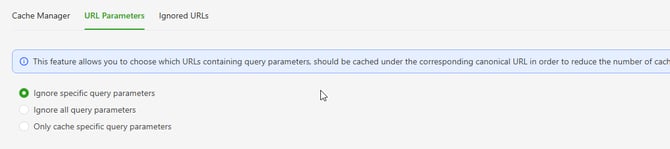
Step 3: Add srsltid as an ignored parameter.
Click Add Parameter, then enter srsltid. When a parameter is ignored, Prerender.io strips it and serves the cached version of the base URL to bots, so all the variations collapse back into one page. Requests that match an ignored parameter are not counted against your render limit.
You can also enter a wildcard such as srsltid* to match related variations. The dashboard shows the number of affected URLs under the input box, so you can confirm the rule matches before you save.

Step 4: Clear the affected URLs from your cache.
Adding an ignore rule does not automatically remove URLs that are already cached. Clear your cache from your dashboard so the existing srsltid variations are removed.
⚠️ Clearing your cache means the affected pages are rendered fresh on the next crawler request. This is expected, and your render count returns to normal as the duplicate variations drop out of the cache.
Step 5: Verify your render count returns to normal.
Configuration changes are not applied instantly. It may take up to 59 minutes before the new parameter rule becomes active for incoming requests. Any remaining srsltid variations are also removed from the cache automatically within about 2 hours, but the manual cache clear in Step 4 is the fastest way to remove the existing backlog. Monitor your render logs over the following days.
✅ The fix is working when srsltid URLs no longer appear in your rendered URL list and your daily render count drops back to its normal level.
If your render count stays high after a few hours, check your dashboard for other repeated query parameters, and review What should I do if I am experiencing high volumes of unwanted renders? for the full list of causes.
ℹ️ Not sure whether a parameter is safe to ignore? Ask Nexus, your AI integration assistant, inside your dashboard. Describe the parameter and Nexus will tell you whether ignoring it affects your cached content.
Related articles
- Ignore URLs and query parameters
- What should I do if I am experiencing high volumes of unwanted renders?
- How do I reduce the number of renders?
💬 Still need help? If your renders are still high after excluding srsltid, our support team can help you find the source. → Contact us at support@prerender.io