
TL;DR
High render volumes are usually caused by internal URLs, query parameter duplicates, soft 404 pages, or inactive cached pages being rendered unintentionally. You can reduce render usage by adjusting cache expiration, filtering ignored URLs and query parameters, and cleaning up dead links and soft 404 pages. The steps below cover every lever available in your Prerender.io dashboard, from broad cache settings to granular path-level rules.
Step 1: log in to your Prerender.io dashboard.
Go to Prerender.io and log in. You need admin access to update cache settings and integration configuration.
Step 2: adjust your global cache expiration setting.
A short cache expiration interval (for example, 6 or 12 hours) causes pages to be re-rendered frequently, increasing overall usage. Increasing the interval reduces re-render frequency while keeping your content accessible to AI crawlers and search engines.
To adjust:
- Open the Cache Manager menu in your dashboard.
- Click the Cache expiration button.
- Select your preferred interval.
For step-by-step instructions, see How cache expiration works in Prerender.io.
ℹ️ Longer cache intervals reduce renders but mean cached pages refresh less often. Choose an interval that matches how frequently your content actually changes.
Step 3: exclude internal and non-public URLs from your integration.
Your integration should only forward publicly accessible pages to Prerender.io. Forwarding internal routes, login pages, or admin dashboards wastes renders on pages that AI crawlers and search engines will never index.
Common URL patterns to exclude:
- Internal services:
/service/internal - CMS admin dashboards:
/wp-admin,/admin - Login-gated or authenticated routes
Update your server or CDN integration configuration to stop forwarding these paths.
ℹ️ How you exclude these paths depends on how Prerender.io is integrated into your stack. Update your middleware, CDN configuration, or server-side integration to stop forwarding these URL patterns to Prerender.io.
Step 4: exclude static file extensions from your integration.
Configure your integration to skip non-HTML file extensions. Files like .js, .css, .xml, .png, .jpg, .jpeg, .gif, .svg, .pdf, .woff, and .ttf should never be forwarded to Prerender.io.
The official Node.js middleware excludes a wide range of static file extensions by default. Other integrations, particularly server-level configurations (Nginx, Apache, IIS), typically require manual exclusion rules. Check your integration's documentation to verify whether static extensions are excluded, and add exclusion rules if they are not.
Step 5: configure ignored query parameters.
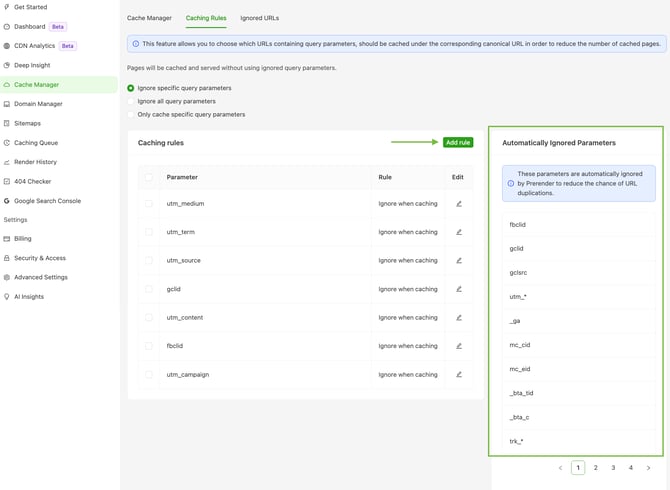
Query parameters like ?session_id= or ?utm_campaign= often create duplicate cache entries for the same underlying page. Ignoring unnecessary parameters keeps your cache clean and avoids re-rendering identical content under different URLs.
To configure:
- Go to Cache Manager in your dashboard.
- Click the Caching Rules tab.
- Review the default set of ignored parameters. Standard tracking params are pre-configured.
- Add any additional parameters your site uses for session tracking, campaign tagging, or internal logic.
ℹ️ Prerender.io pre-configures common tracking parameters, but parameters specific to your site's logic need to be added manually. You know your site's query parameters best.
For full documentation, see How do I stop Prerender from caching certain URLs?.
Step 6: set up Ignored URL rules for paths that should never be cached.
The Ignored URLs feature lets you block entire URL patterns from being cached. Any URL matching a rule is skipped entirely, and Prerender.io returns a 404 for that request, preserving your render quota.
To set up rules:
- Open Ignored URLs under Cache Manager.
- Select Contains or Wildcard as your match type.
- Add patterns for pages that should never be cached, for example
/thank-youor?preview=. - Use the test option to confirm the rule matches the URLs you intend to block.
- Click Save the new rule.
⚠️ URLs matching an Ignored URL rule will not be stored in the cache. Prerender.io returns a 404 to the crawler request for these URLs. Your website visitors are not affected.
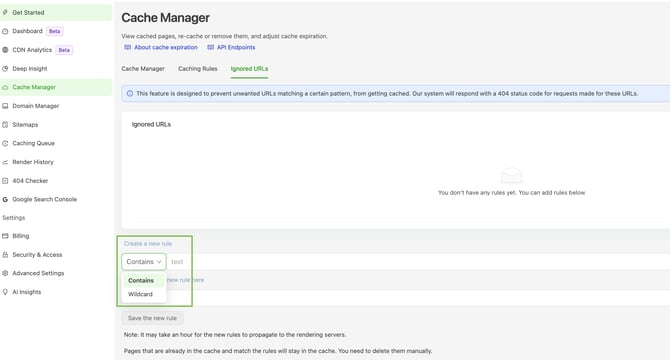
ℹ️ Use wildcard rules to block entire folders efficiently. For example, /internal/* blocks all paths under /internal/.
For full documentation, see How do I stop Prerender from caching certain URLs?.
Step 7: remove dead links from your site.
AI crawlers and search engines may request pages that no longer exist if your site contains broken internal links. Prerender.io renders those requests, adding to your usage without any indexing benefit.
To clean up:
- Run a link checker on your site to identify broken internal links.
- Remove or update dead links in your CMS.
- Purge deleted pages from your sitemap file.
Step 8: resolve soft 404 pages.
Soft 404 pages are pages that don't exist but return a 200 OK status. Prerender.io treats them as valid pages and caches them. This inflates your render count and can lead to poor-quality content being indexed by AI crawlers and search engines.
Use the Prerender.io 404 Checker to identify soft 404 pages on your site. For instructions, see How do I find and fix soft 404s in Prerender?.
Step 9: clear inactive cached pages.
Prerender.io flags cached pages that haven't been requested in the last 30 days. These pages consume cache space without contributing to your AI & Search visibility. Clearing them keeps your cache focused on active content.
For instructions, see How do I find pages that have not been requested in the past 30 days?.
Step 10: set custom cache expiration rules by path.
Custom cache expiration lets you set different refresh intervals for different sections of your site. Set longer intervals for stable pages like static landing pages, and shorter intervals for sections that change frequently.
For instructions, see How do I set custom cache expiration rules?.
⚠️ Custom cache expiration rules are available on Pro and Enterprise plans only.
Step 11: verify your render volume is decreasing.
After making changes, monitor your Cache Manager to confirm the adjustments are working.
✅ Your configuration is working when:
- The number of unique cached URLs is decreasing or remains stable.
- Previously excluded internal URLs no longer appear in your cache.
- Ignored URL and caching rules are being respected.
⚠️ If your render volume is still higher than expected after these steps, contact support at support@prerender.io.
Related Articles
- How do I stop Prerender from caching certain URLs?
- Integrations overview
- How do I find pages that have not been requested in the past 30 days?
- How do I find and fix soft 404s in Prerender?
- How do I set custom cache expiration rules?
💬 Still need help? If you're unsure what's driving your render usage or need help reviewing your caching rules and ignored URL configuration, our support team can help. → Contact us at support@prerender.io