
TL;DR
To integrate Prerender with Next.js, add a single file at your project root — middleware.js for Next.js 15 and earlier, or proxy.js for Next.js 16 and later — paste in the Prerender integration code, add your Prerender token, and deploy. Most teams complete the setup in under 10 minutes. If you'd rather not do it manually, Nexus, your AI integration assistant, can walk you through it inside your Prerender dashboard.
Video walkthrough
Prefer to read? Follow the step-by-step guide below.
Step 1: Create your Prerender account and copy your token
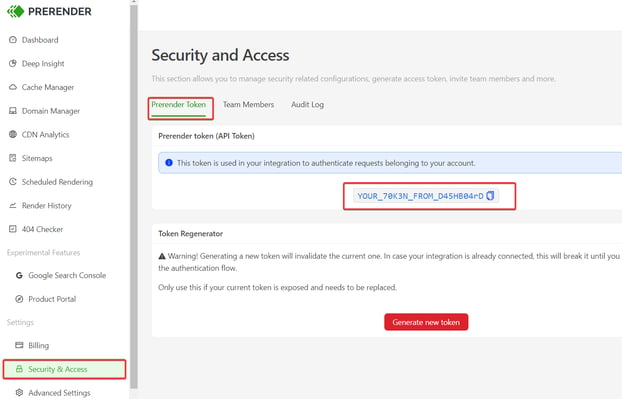
If you don't already have one, sign up at dashboard.prerender.io. Once you're logged in, open the Security and Access menu and go to Prerender Token. Copy the token — you'll paste it into your code in Step 3.
ℹ️ The Prerender token has moved. It now lives under Security and Access → Prerender Token, not in the old account settings location.
Step 2: Check your Next.js version and add the integration file
The file you add depends on your Next.js version. Check your package.json or run npx next --version in your project folder.
For Next.js 15 and earlier - use middleware.js
Copy the Prerender integration code from this gist and save it as middleware.js at your project root.
If your project uses a src directory, place the file at src/middleware.js instead.
For Next.js 16 and later - use proxy.js
Copy the Prerender integration code from this gist and save it as proxy.js at your project root.
If your project uses a src directory, place the file at src/proxy.js instead.
⚠️ Only add one of these files — eithermiddleware.jsorproxy.js, depending on your Next.js version. Adding both can cause request handling conflicts.
Step 3: Add your Prerender token
Open the file you just added and look for process.env.PRERENDER_TOKEN. You have two ways to provide your token — pick whichever fits your workflow.
Option A: Paste your token directly into the file
Replace process.env.PRERENDER_TOKEN with your actual token from the Security and Access menu. This is the fastest option for a quick test.
Option B: Use an environment variable (recommended)
Leave process.env.PRERENDER_TOKEN as it is in the code, and add an environment variable named PRERENDER_TOKEN in your hosting platform.
For example, in Vercel, open Project Settings → Environment Variables and add PRERENDER_TOKEN with your token as the value. The exact location varies by platform.
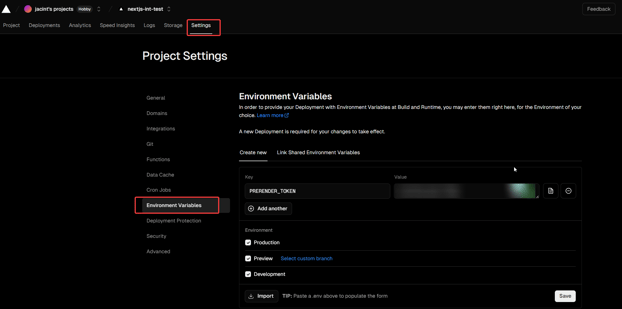
ℹ️ Environment variables are the safer choice — they keep your token out of your source code and out of version control.
Step 4: Commit, deploy, and verify your integration
Commit your changes and push them to your repository. Once your hosting platform finishes deploying the new version, Prerender will start intercepting AI crawler and search engine requests.
To confirm everything is working, follow the steps in Verify your integration. The guide shows you how to send a test crawler request and check for Prerender headers on the response.
✅ Your integration is working when test requests return Prerender headers (such asX-Prerender-Requestid) and your pages start appearing in your dashboard's cached pages list within a few minutes of the first crawler visit.
If you don't see the Prerender headers or your pages aren't being cached, the integration isn't intercepting requests yet — see Why am I seeing 403 or 404 errors after integrating Prerender? for common fixes.
💬 Still need help?
If your Next.js integration isn't behaving as expected, our support team can help — share any error messages, your Next.js version, and screenshots of your setup so we can diagnose it faster.
→ Contact us at support@prerender.io
Related articles
- Verify your integration — confirm Prerender is intercepting AI crawler and search engine requests.
- Integrate Prerender with React, Angular, or Vue — guides for other JavaScript frameworks.
- Available integrations — full list of platforms Prerender supports out of the box.
- Why am I seeing 403 or 404 errors after integrating Prerender? — common troubleshooting for new integrations.