
TL;DR
The 404 Checker in your Prerender dashboard monitors whether your domains return a proper 404 status for non-existent pages. Pages that incorrectly return 200 — known as soft 404s — get cached by Prerender and recached on your regular schedule, consuming extra renders over time. To fix a soft 404, add the prerender-status-code meta tag to the affected pages; Prerender drops them from the cache on the next recache.
Prerender caches every page that returns a 200 HTTP status code. When a non-existent page returns 200 instead of 404, Prerender treats it as valid and caches it. That page then gets recached on your regular schedule — and soft 404s can accumulate in your cache over time, inflating your monthly render usage.
There are two types of 404 behavior:
- Hard 404 — the server correctly returns a
404HTTP status for a non-existent page. Prerender does not cache it. - Soft 404 — the page shows an error message but returns
200 OK. Prerender caches it, recaches it, and AI crawlers and search engines may treat it as valid content.
The 404 Checker monitors your domains automatically so you can catch and fix soft 404s before they affect your cache usage or your AI & search visibility.
Step 1: Open the 404 Checker in your Prerender dashboard
Log into dashboard.prerender.io and navigate to 404 Checker in the left-hand menu.

Step 2 — Add your domain
Click Add Domain, enter your domain URL — for example, https://example.com — and click Add.

Step 3 — Review the verification results
Once your domain is added, Prerender runs a verification check against two columns:
- Domain reachable — confirms Prerender can reach your site
- 404 status returned — confirms your site returns a proper
404for non-existent URLs
A question mark icon appears in both columns while the check runs. A checkmark indicates the check passed.
If your site returns 200 for a non-existent URL, the 404 Checker displays a warning icon instead. Hover over it to see what was detected:
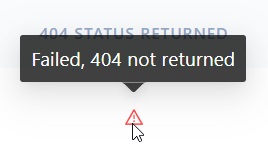
ℹ️ A warning icon means your site has a soft 404. AI crawlers and search engines may read that page as valid content — and Prerender is caching and recaching it on your regular schedule. See Understanding status codes for a full breakdown of how Prerender interprets HTTP responses.
Step 4 — Set your check interval
Choose how often the 404 Checker verifies your domain. The available intervals are:
- Every 1 hour
- Every 4 hours
- Every 8 hours
- Every 24 hours (default)
- Every week
ℹ️ Each check requests a page through Prerender, so it consumes one render from your monthly allowance. Higher-frequency checks make sense for large sites or during active deployments — but factor in the extra renders before increasing your interval. See Rendering queues for more on how renders are consumed.
Step 5 — Fix detected soft 404s
For each page flagged as a soft 404, add the prerender-status-code meta tag to the <head> section of that page:
<meta name="prerender-status-code" content="404">
This tells Prerender to treat the page as a 404 — so it stops being cached and recached — while leaving what your website visitors see completely unchanged.
ℹ️ Once the meta tag is in place, Prerender drops the page from the cache on the next recache. Your render usage for those URLs will reduce accordingly.
Step 6 — Verify the soft 404s are resolved
After adding the meta tag and allowing time for the next recache, return to the 404 Checker and check your domain's status.
✅ The soft 404 is resolved when the warning icon is gone and both the Domain reachable and 404 status returned columns show a checkmark for your domain.
If the warning is still showing, confirm the meta tag is correctly placed inside the <head> element of the affected page — then wait for the next recache cycle to complete.
💬 Still need help?
If soft 404 warnings are persisting after adding the meta tag, our support team can help diagnose the issue.
→ Contact us at support@prerender.io