
TL;DR
Integrate Prerender with Fastly by making three VCL changes: configure a Prerender backend, add routing rules to send AI crawler and search engine traffic to that backend, and update the cache key to separate bot and visitor requests. You'll need your Prerender token and your Fastly service share key. The integration takes about 20–30 minutes and requires activating a new Fastly service version for the changes to take effect.
Step 1: Open your Prerender dashboard and copy your token
- Log in to your Prerender dashboard.
- Go to Security and Access and copy your Prerender token.
ℹ️ Don't have a Prerender account yet? Sign up at prerender.io before continuing.
You'll paste this token into the VCL snippet in Step 4.
Step 2: Find your Fastly service share key
You'll need your Fastly service share key to identify the Prerender backend in Step 3.
.png?width=670&height=161&name=image(66).png)
Step 3: Configure the Prerender backend in your VCL init section
This step registers Prerender as a backend in Fastly so it can receive forwarded crawler requests.
Back up your existing VCL configuration before making any changes.
- Open your Fastly service and go to the VCL editor.
- Add the following snippet to the init section of your VCL configuration.
- Replace
YOUR_SERVICE_IDwith your Fastly service share key from Step 2.
.png?width=670&height=454&name=image(65).png)
backend Prerender_Host {
    .between_bytes_timeout = 10s;
    .connect_timeout = 1s;
    .dynamic = true;
    .first_byte_timeout = 25s;
    .host = "service.prerender.io";
    .max_connections = 200;
    .port = "443";
    .share_key = "YOUR_SERVICE_ID";

    .ssl = true;
    .ssl_cert_hostname = "service.prerender.io";
    .ssl_check_cert = always;
    .ssl_sni_hostname = "service.prerender.io";

    .probe = {
        .dummy = true;
        .initial = 5;
        .request = "HEAD / HTTP/1.1"  "Host: service.prerender.io" "Connection: close";
        .threshold = 1;
        .timeout = 2s;
        .window = 5;
      }
}
first_byte_timeout in this snippet is set to 25s. This value must always be higher than the Rendering Timeout in your Prerender dashboard settings (default is 20 seconds). If you increase the rendering timeout in your dashboard, update first_byte_timeout here to match.Step 4: Add the bot routing rules to your VCL recv subroutine
This snippet detects AI crawler and search engine requests and routes them through the Prerender backend configured in Step 3.
- In the VCL editor, add the following snippet to the subroutine section and select recv as the subroutine type.
- Replace
YOUR PRERENDER TOKENwith the Prerender token you copied in Step 1.
.png?width=670&height=511&name=image(60).png)
  if( req.http.User-Agent ~ "(?i)prerender"){
    return(pass);
  }
  if( req.http.User-Agent ~ "(?i)googlebot|bingbot|yandex|baiduspider|facebookexternalhit|twitterbot|linkedinbot|embedly|showyoubot|outbrain|pinterestbot|slackbot|vkShare|W3C_Validator|whatsapp|ImgProxy|flipboard|tumblr|bitlybot|skype|nuzzel|discordbot|google|qwantify|pinterest|lighthouse|telegrambot|Perplexity|OAI-SearchBot|ChatGPT|GPTBot|ClaudeBot|Amazonbot" && req.url.ext !~ "(?i)js|css|xml|txt|less|png|jpg|jpeg|gif|pdf|doc|ico|rss|zip|mp3|rar|exe|wmv|doc|avi|ppt|mpg|mpeg|tif|wav|mov|psd|ai|xls|mp4|m4a|swf|dat|dmg|iso|flv|m4v|woff|ttf|svg|webmanifest" ) {

    set req.backend = Prerender_Host;


    set req.http.user-agent = req.http.user-agent;
    if (req.url !~ "^https://") {
    set req.url = "https://" req.http.host req.url;
  }


    set req.http.x-prerender-token = "YOUR PRERENDER TOKEN";
    set req.http.int-type = "Fastly";
    return(pass);

  }
ℹ️ The URL check (if req.url !~ "^https://") ensures Prerender always receives a fully qualified HTTPS URL. The int-type header identifies this as a Fastly integration to Prerender's service.
Step 5: Update the cache key in request settings
This step prevents Fastly from serving a cached response intended for a bot to a website visitor — or vice versa.
- In Fastly, open Request settings and scroll to the bottom.
- Click Add a new request setting.
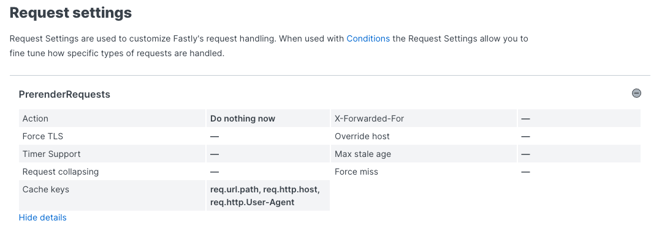
- Under Advanced settings, set the Cache Key to:
req.url, req.http.host, req.http.User-Agent
.png?width=670&height=123&name=image(73).png)
Step 6: Activate the new Fastly service version
Save your VCL changes and activate the new service version. In Fastly, saved changes don't apply until you explicitly activate the version.
⚠️ Activating a new version replaces the currently active one immediately. If possible, test your VCL changes in a staging environment before activating in production.
Step 7: Verify your integration
Confirm that Prerender is correctly intercepting AI crawler and search engine requests and serving rendered HTML before you consider the setup complete.
Follow the steps in How do I verify my Prerender integration? to test your setup.
You can also run a quick test using curl with a bot User-Agent:
curl -v -A googlebot www.yourpage.com/
✅ Your integration is working when cached pages appear in your Prerender dashboard within a few minutes of your first crawler request, and Prerender response headers are visible in the verification tool.
If you don't see Prerender headers or IDs in the verification output, the integration is not active. Check that YOUR PRERENDER TOKEN has been replaced with your actual token, that the backend name in the recv snippet matches the backend defined in the init section (Prerender_Host), and that the new service version has been activated.
If you see "Prerender Integration Not Detected," follow the steps in What should I do if I receive a "Prerender Integration Not Detected" error? to resolve it.
💬 Still need help?
If you're running into issues with your Fastly integration, our support team can help you diagnose what's going wrong.
→ Contact us at support@prerender.io