
support@prerender.ioTL;DR
To find URLs that failed to cache, open Render History in your Prerender dashboard and filter the HTTP Status column for codes between 300 and 599. The filter takes under a minute to apply — from there you can sort the results, identify the failure type, and recache affected pages using Cache Manager.
Pages that fail to cache typically return HTTP status codes like 404 (not found), 503 (service unavailable), or 504 (gateway timeout). These failures mean the page wasn't cached — so when AI crawlers and search engines visit those URLs, they may receive an incomplete or missing page instead of clean, rendered HTML.
Render History in your Prerender dashboard gives you a filterable log of every render attempt, including its HTTP status code, so you can pinpoint exactly which pages failed and why.
ℹ️ Common reasons pages fail to cache: timeout errors on slow-loading pages (504), redirect loops or incorrect integrations causing 403 or 404 errors, and changes to your site architecture or Prerender token that cut off access to certain URLs.
Step 1: Log into your Prerender dashboard
Go to dashboard.prerender.io and log in to your account.
Step 2: Open Render History
In the left-hand navigation, click Render History.
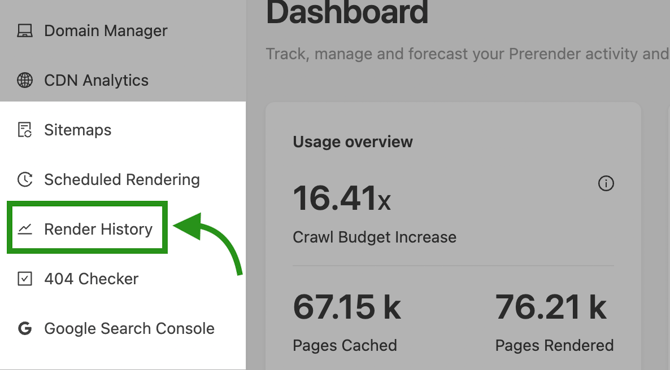
Step 3: Set the HTTP status filter
Click the filter icon next to the HTTP Status column header. In the filter modal, set the range to 300–599 to capture all redirect and error codes, then click OK to apply.
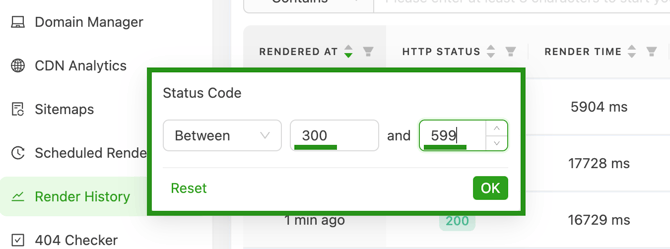
ℹ️ A range of 300–599 covers redirects (3xx), client errors (4xx), and server errors (5xx). To focus on server-side failures only, narrow the range to 500–599.
Step 4: Review the failed URLs
The filtered view shows every URL that returned an error response in recent render attempts. Check the status codes to understand the failure type — 504 typically means a timeout, while 404 points to a missing or moved page.
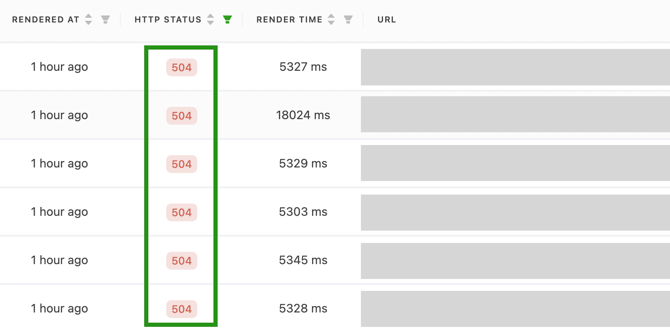
ℹ️ Sort the list by Render Time to surface pages that took longest to load — these are the most likely source of 504 timeout failures. See Understanding status codes for a full breakdown of what each code means.
Step 5: Fix the underlying issue and verify
Once you've identified the failing URLs, resolve the issue on your site. Then use Cache Manager to recache the affected pages.
To confirm the fix worked, return to Render History and re-apply the same 300–599 filter. Pages that cached successfully will no longer appear in the results.
✅ Your pages are caching correctly when they no longer appear under the 300–599 filter and show a 200 status code in Render History.
ℹ️ If you're seeing widespread failures across many URLs, export the filtered list from Render History before contacting support. Include the failed URLs, their status codes, and screenshots — this helps our team investigate faster.
💬 Still need help?
If failed renders are persisting across multiple pages after fixing the underlying issue, our support team can help diagnose the cause.
→ Contact us at support@prerender.io