
TL;DR
Prerender.io's CloudFront integration runs as two Lambda@Edge functions: one detects bot requests and tags them with Prerender.io headers, and the other routes those tagged requests to service.prerender.io. You deploy both via the official CloudFormation template at github.com/prerender/prerender-cloudfront. The template's bot detection already covers Googlebot, Bingbot, and the major AI crawlers (Perplexity, ChatGPT, GPTBot, ClaudeBot, OAI-SearchBot, Amazonbot). After deploying, you verify by sending a bot-emulated request and confirming the x-prerender-requestid response header is present.
⚠️ Before you start: this integration uses AWS CloudFormation, Lambda@Edge, and CloudFront. If you have not worked with those services before, read the practice-run section below first and consider deploying the unmodified template in an isolated AWS account to get familiar before touching production.
The CloudFormation template is here: github.com/prerender/prerender-cloudfront/blob/master/prerender-cloudfront.yaml.
How the integration works
The template deploys two Lambda@Edge functions and wires them to your CloudFront distribution:
- SetPrerenderHeader runs on the viewer-request event. It inspects the
User-Agent, decides whether the requester is a crawler that should be served prerendered HTML, and if so, sets theX-Prerender-Token,X-Prerender-Host,X-Prerender-Cachebuster, andX-Query-Stringheaders on the request. - RedirectToPrerender runs on the origin-request event, after the cache. If it sees the Prerender.io headers from the first function, it rewrites the origin to
service.prerender.ioso the request is served by Prerender.io instead of your normal origin.
This means each cached URL is partitioned by whether the request is from a bot or a human, so your visitors continue to get the live site while AI crawlers and search engines get the prerendered snapshot.
Before you begin: practice run with the default template (optional but recommended)
If you are not already comfortable with CloudFormation, Lambda@Edge, and CloudFront, do a practice run before modifying anything for production.
- Deploy the default template. Deploy the YAML in a test environment or isolated AWS account without changes. This creates all the resources at once: the two Lambda functions, the IAM execution role, an Origin Access Control, an S3 bucket, a bucket policy, and a CloudFront distribution.
- Review what was created. Open the AWS Console and look at the new Lambda functions, their versions, and the CloudFront distribution's behaviours. Note which functions are attached to which event (viewer-request vs origin-request).
- Compare against your existing infrastructure. If you already have an S3 bucket and CloudFront distribution serving your site, identify which template resources duplicate yours and which add new functionality (the two Lambda functions plus their IAM role).
- Adjust and merge. Modify the template to keep only the Prerender.io-specific components (Lambda functions, IAM role, the LambdaFunctionAssociations on your existing CloudFront behaviour, and the forwarded headers). Remove the Bucket, BucketPolicy, and CloudFrontDistribution resources if you are using your own.
This approach gives you a clear picture of what the integration actually adds before you touch production infrastructure.
How to deploy the integration
Step 1: prepare your CloudFormation template.
Open the YAML CloudFormation template and adjust it to fit your existing infrastructure. Most sites already have an S3 bucket and CloudFront distribution, so you usually only need to bring across the Lambda@Edge functions, the IAM role, the LambdaFunctionAssociations on your CloudFront behaviour, and the five forwarded headersStep 2: create a new CloudFormation stack.
📝 If you are using an existing S3 bucket and CloudFront distribution, remove or adjust the Bucket, BucketPolicy, and CloudFrontDistribution resources in the template to avoid duplicates.
Once your template is ready, open the CloudFormation service in your AWS Management Console.
- Click Create stack.
- Choose With new resources (standard) to set up the Prerender.io integration components.
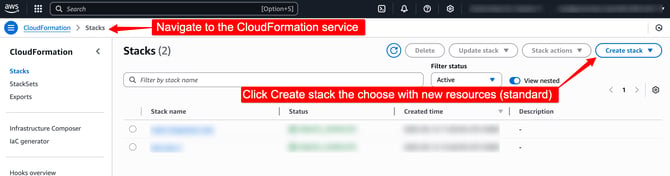
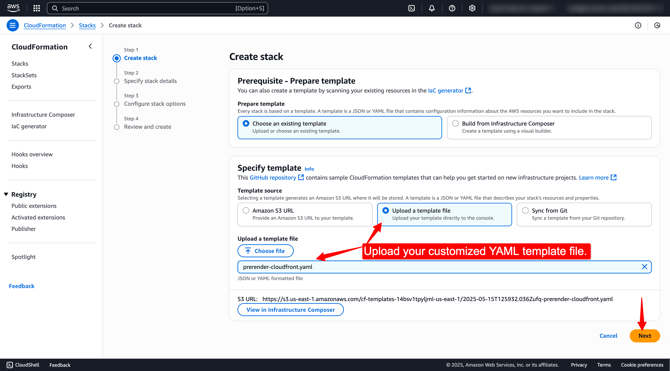
Step 3: upload your customised template.
On the next screen, upload the YAML file you prepared in Step 1.
Step 4: set the stack name and parameters.
Follow the on-screen prompts. Set a recognisable stack name and provide a value for the PrerenderToken parameter.
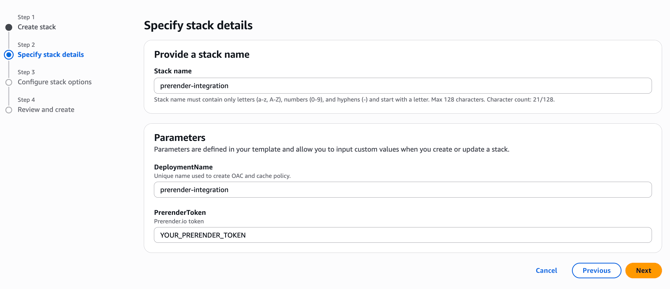
📝 You can find your Prerender.io token under the Security and Access menu in the Prerender.io dashboard.
Step 5: review and submit.
Click Next through the configuration screens, review your changes on the final page, then click Submit to deploy the stack.
📝 The steps above describe creating a brand new stack. If you merged the Prerender.io components into your existing CloudFormation stack, deploy your merged version through your usual change-set or stack-update process instead.
Step 6: confirm the stack created successfully.
When CloudFormation finishes, you should see the new stack listed with its Lambda function resources. If the stack reaches CREATE_COMPLETE without errors, the Prerender.io integration is in place and should start handling traffic on your CloudFront distribution.
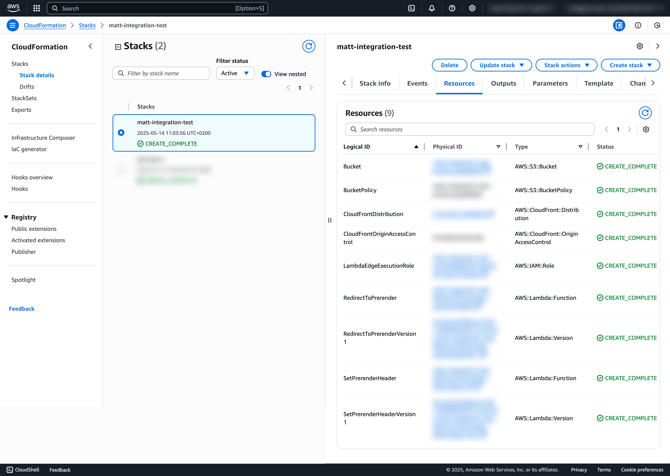
Step 7: verify the integration.
Lambda@Edge functions take a few minutes to propagate to all AWS edge locations after deployment. Wait around 5 minutes, then simulate a bot request and check the response headers.
- Emulate a search engine bot User-Agent (Googlebot is the simplest) and check the response in your browser's DevTools Network tab.
- Look for the
x-prerender-requestidresponse header. If it is present, the integration is working.
→ For full step-by-step instructions, see How do I verify if my Prerender.io integration is working correctly?
✅ Your CloudFront integration is working when an x-prerender-requestid response header appears on bot-emulated requests, and new entries show up under CDN Analytics in your Prerender.io dashboard within a few minutes.
Troubleshooting common issues
If something is not working after the integration is deployed, work through the most likely causes below.
Lambda@Edge deployment delays
Lambda@Edge functions need time to propagate across AWS edge locations after deployment. After creating or updating the stack, wait several minutes before testing the integration.
Prerender.io token issues
Confirm the PrerenderToken parameter is set to a valid token from your Prerender.io dashboard. Without a valid token, Prerender.io rejects requests from the Lambda function. You can find the current token under the Security and Access menu.
Resource conflicts with existing infrastructure
If you merged the template into an existing CloudFormation stack, make sure you removed the Bucket, BucketPolicy, and CloudFrontDistribution resources where they would duplicate what you already have. Conflicting resource definitions can cause stack failures or unexpected overwrites.
Insufficient IAM permissions
The Lambda execution role must allow creating and writing to CloudWatch logs (logs:CreateLogGroup, logs:CreateLogStream, logs:PutLogEvents) and being assumed by both lambda.amazonaws.com and edgelambda.amazonaws.com. Missing permissions can cause silent failures.
Lambda version and association mistakes
CloudFront only triggers a specific published Lambda version. Confirm that the Lambda function versions referenced in your LambdaFunctionAssociations match the ones that were actually published. Incorrect versions or ARNs prevent the Lambda triggers from firing.
CloudFront cache behaviour configuration
Your CloudFront behaviour must forward all five headers Prerender.io needs:
X-Prerender-TokenX-Prerender-HostX-Prerender-CachebusterX-Query-StringUser-Agent
If any are missing from the forwarded headers list, the integration cannot detect crawlers or route the request to service.prerender.io correctly.
Custom origin path encoding
The RedirectToPrerender function rewrites the origin path to a URL-encoded form (/https%3A%2F%2F<your-host>). If your domain contains special characters or you have customised the path, verify the encoding still matches what Prerender.io expects.
Origin Access Control setup
Check that the CloudFront Origin Access Control (OAC) is properly applied so direct access to the S3 bucket is restricted. Direct S3 access bypasses Lambda@Edge entirely.
Handling 404s in single-page applications (SPAs)
📝 If you do not have a dedicated 404 page, uncomment the CustomErrorResponses block in the template and set it like this:
CustomErrorResponses:
  - ErrorCode: 404
    ResponseCode: 200
    ResponsePagePath: /404.html
This is useful for single-page applications, which typically do not have separate error pages and instead handle all routing through JavaScript. With this configuration, when a static file is not found on the host, CloudFront returns a 200 response with /404.html. JavaScript in the browser then interprets the URL and either displays the matching page or shows a "Not Found" message.
Related articles
- How do I verify if my Prerender.io integration is working correctly?
- Best practices
- How does Prerender.io work?
- Available integrations
- How Prerender.io works with CDNs
💬 Still need help?
If the stack deploys cleanly but the integration is not detected, or the Lambda functions are throwing errors in CloudWatch, our support team can help.
→ Contact us at support@prerender.io