
Important before you proceed:
- You have access to Cloudflare with permission to create and manage Workers
- You are on a Lovable paid plan, because custom domains are only available on paid plans
- Your Lovable project is already published
- You are connecting your domain in Lovable using the Advanced option: Domain uses Cloudflare or a similar proxy
Important:
If you are a free Lovable user serving yourapp.lovable.app behind Cloudflare, use the separate worker-custom-domain.js guide instead.
Cloudflare blocks AI crawlers by default
Cloudflare automatically blocks AI training crawlers on newly added domains. If you want AI to train on your website's content, you must explicitly allow it.
You can do this by selecting the domain from the Account Home menu, then on the Overview page, allow the AI crawlers under "Control AI crawlers."
More information on this is available here.
Copy the Cloudflare worker's source code from this link.
It might take a couple of minutes for the integration to start working after the final deployment.
Step-by-step guide
Prerequisites:
Similar to the "free" lovable guide, you should have:
- A Cloudflare account to set up the integration in
- Preview of the steps you need to perform in Lovable to connect Lovable to Cloudflare.
Lovable documentation page.
1. Create a new worker
- Open your Cloudflare Dashboard, click on Compute and AI, and select Workers & Pages on the left side.
- Click Create Application at the top right corner and select "Start with Hello World! "
- Add a name for the worker, like "Prerender.io Worker," and click on Deploy
- Click on Edit Code at the top right and replace the default code. The worker's source code can be found here. Copy the code from GitHub and paste it into the code section instead of the original code.
2. Configure the worker
- Go to the worker Settings (top)
- Add a Route corresponding to the domain where you wish to integrate Prerender under Domains & Routes
- You can add the route as
*example.com/* - You can get more specific with the routes.
Examples of the Route setting:
| Website Address Type | Route Pattern |
|---|---|
| example.com | example.com/* |
| www.example.com | www.example.com/* |
| Both with/without www | *example.com/* |
| Any subdomain | *.example.com/* |
| Specific subdomain | blog.example.com/* |
| Multiple subdomains | (sub1|sub2).example.com/* |
- Select Failure mode: Fail open(proceed)
- Save the setting.
3. Add the Prerender token as an Environment Variable.
- Under Variables and Secrets
- Type: text
- Variable name is PRERENDER_TOKEN
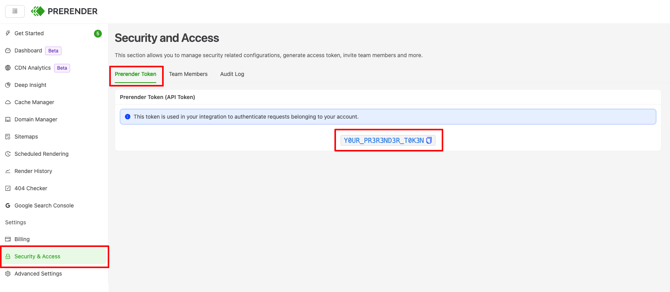
- Add your Prerender.io Token from the Security and Access menu as the value.
4. Deploy the worker.
- It might take a couple of minutes for the integration to start working after the final deployment.
Verify Your Installation
After integration, it’s important to verify that everything is working as expected. We’ve provided an easy-to-follow guide to help you test your setup and confirm that Prerender is functioning properly.
Is the Prerender integration working on other pages?
Test if the Prerender integration works on the other pages based on this guide: Verify the integration
If you don't see the Prerender headers / IDs, then the Integration is not working, which might be why the other URL is not cached.
Getting an Error?
If you see Prerender Integration Not Detected, check the following:
- The domain is Live in Lovable
- The domain was connected in Lovable with Advanced -> Domain uses Cloudflare or a similar proxy
- Cloudflare is actually in front of the domain
- The Worker is attached to the correct hostname or route
PRERENDER_TOKENis present and valid- You replaced the default Worker code with worker-subscriber.js, not worker-custom-domain.js
Get Support
If you're still encountering issues after implementing Prerender:
- Review your implementation against our documentation
- Contact our support team:
- Email us at support@prerender.io
- Or click 'Support' > 'Contact Support' at the top-right corner of the dashboard
Related Articles:
- Available integrations
- CDN Issues
- Edge CDN Status Codes and Behaviour
- How Does Prerender Work With CDNs Like Cloudflare, Fastly, or Akamai?
- How Can I Integrate Prerender If I'm Using a Hosting Platform That Doesn't Allow Direct Server Access?
- How Can I Integrate Prerender With My React/Angular/Vue Application?
- How to Integrate Prerender with WordPress
- Why Am I Seeing 403 or 404 Errors After Integrating Prerender?