
TL;DR
Prerender.io's sitemap crawler discovers your sitemap URLs, renders them, and caches the results so AI crawlers and search engines receive instant, fully rendered HTML on their first visit. Add your sitemap in the Prerender.io dashboard, choose your cache and recrawl settings, and Prerender.io handles the rest automatically.
Why submit your sitemap
Without a sitemap, Prerender.io waits for AI crawlers and search engines to discover your pages naturally. Each first visit is a cache miss, meaning the crawler waits while Prerender.io renders the page on the fly.
Submitting your sitemap eliminates this delay. Prerender.io renders and caches every URL in your sitemap before crawlers arrive, so every request is a cache hit from day one. This is especially valuable for large sites or newly launched pages that have not been crawled yet.
How the sitemap crawler works
When you add a sitemap, Prerender.io follows this process:
- Prerender.io downloads the sitemap from your server using the Prerender.io user agent.
- It adds each
<url>entry to the rendering queue. Prerender.io may skip URLs that are already cached. - If your sitemap references additional sitemaps via
<sitemap>entries (a sitemap index), Prerender.io downloads and processes those as well.
On subsequent recrawls, Prerender.io checks for new URLs and adds them to the cache. URLs already discovered in a previous crawl are not re-queued. Pages are still re-rendered according to your cache expiration settings.
Key capabilities:
- Automatic discovery. Prerender.io's sitemap crawler can find your sitemaps automatically. If it does not, you can add them manually.
- Multiple sitemaps supported. You can add as many sitemaps as your site structure requires.
- Configurable recrawl intervals. Recrawl frequency depends on your plan. Lower plans recrawl weekly; higher plans unlock daily or hourly recrawls. See Prerender.io pricing for your plan's options.
- Standard format. Supports XML sitemaps per the sitemaps.org protocol.
Role permissions
Not all account roles can manage sitemaps. Check your role before proceeding.
| Role | Permissions |
|---|---|
| Account Owner | Full control |
| Admin | Full control |
| Billing Manager | Read only |
| Team Member | Read only |
| Guest | Read only |
Step 1: Open the sitemaps section in your Prerender.io dashboard.
Log in to your Prerender.io dashboard and go to the Sitemaps menu.
Step 2: Import your sitemap.
- Click Import Sitemap at the top right.
- Enter your sitemap URL.
- Choose your cache options (desktop, mobile, or both) and your recrawl interval.
- Click Import to start caching.
ℹ️ When you click Import, Prerender.io begins caching all URLs in the sitemap immediately. Depending on the size of your sitemap, this may take some time.
Step 3: Monitor your sitemap health.
After importing, check the Health column in the Sitemaps table:
- ✅ means the sitemap is healthy and can be crawled.
- ❓ means the sitemap was just added and is still being processed. This may take a couple of minutes.
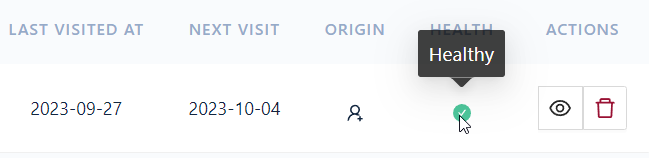
If the sitemap is unavailable or cannot be crawled, the table displays the issue.
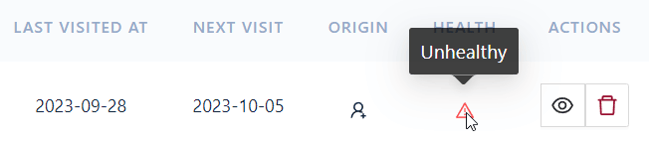
Click the 👁️ icon next to a sitemap to see when it was last crawled (Last visited at) and when the next crawl is scheduled (Next visit).

The URLs that were already detected previously on the Sitemap will be skipped and won't be recached when the sitemap is re-crawled.
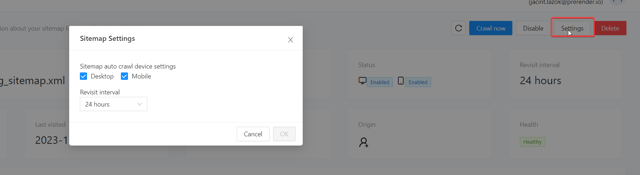
Step 4: adjust crawling settings if needed.
You can change your sitemap settings at any time:
- Click the 👁️ icon next to the sitemap you want to adjust.
- Edit the recrawl interval and rendering device preferences.
To trigger a manual recrawl, use the dashboard or the /sitemap API endpoint. The API is useful for integrating automatic recrawls into your workflow whenever your sitemap is updated.
Troubleshooting an unhealthy sitemap
If your sitemap is flagged as unhealthy, check the following:
- Verify the URL is correct and accessible. Try loading the sitemap URL in your browser to confirm it returns valid XML.
- Whitelist Prerender.io's IP addresses and user agents. Your server or CDN may be blocking the Prerender.io crawler. See Prerender.io IP addresses for details.
- Confirm the sitemap follows the standard format. It must be a valid XML sitemap per the sitemaps.org protocol.
- Check for non-200 HTTP status codes. If sitemap entries return errors (4xx, 5xx), Prerender.io may flag the sitemap as unhealthy.
For a detailed breakdown of common sitemap errors, see why is my sitemap marked as unhealthy or failing to crawl?
Related articles
- Why is my sitemap marked as unhealthy or failing to crawl?
- Limiting Prerender.io rendering to your sitemap URLs
- How do I use the Prerender.io recache script to refresh multiple URLs?
💬 Still need help? If your sitemap is not being crawled or cached as expected, our support team can help you diagnose the issue. → Contact us at support@prerender.io