
TL;DR
Missing elements in Prerender cached pages are caused by one of three issues: images are disabled by default to conserve rendering time, lazy-loaded content isn't triggered because the viewport is too small, or the page hit the rendering timeout before it finished loading. Each issue has a specific setting in your Prerender dashboard. After adjusting the relevant setting, wait one hour and recache an affected page to confirm the fix.
Which elements are missing?
Use the descriptions below to identify your issue, then follow the steps in the corresponding section.
- Images missing — photos, product images, or background images don't appear in the cached version → see Images not loading in cached pages
- Below-the-fold content missing — sections or components that appear when scrolling on the live page are absent in the cached version → see Elements missing when scrolling
- Other elements incomplete or cut off — loading spinners are visible in the cached page, or sections appear partially rendered → see Elements missing due to rendering timeout
ℹ️ More than one issue can affect the same page at the same time. If you're seeing multiple types of missing content, work through each relevant section.
Images not loading in cached pages
Prerender disables image loading by default to conserve rendering time. AI crawlers and search engines index images through their alt text and metadata rather than the image files themselves, so loading images is unnecessary for most sites.
However, if your page has content that only loads after an image has loaded — such as JavaScript triggered by an image load event — you'll need to enable image rendering.
To fix it:
- Open Advanced Settings in your Prerender dashboard.
- Under Image Loading, enable image rendering.
- Scroll down and save the setting.
- Wait at least one hour for the setting to apply.
- Manually recache one of the affected pages to confirm the issue is resolved.
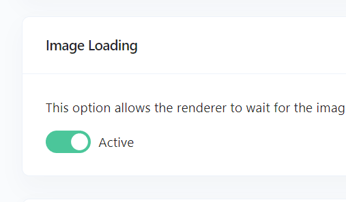
ℹ️ Only enable image rendering if your page content genuinely depends on images loading. Enabling it unnecessarily increases rendering time and uses more of your included renders.
Elements missing when scrolling
If sections, images, or components visible below the fold on the live page are absent in the cached version, the likely cause is lazy loading. Lazy loading only renders content as it enters the visible viewport. Prerender's default viewport may not be tall enough to trigger lazy-loaded content further down the page.
To fix it:
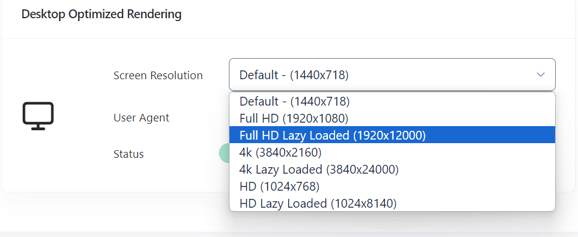
- Open Advanced Settings → Rendering Devices.
- Choose a resolution with "Lazy Loaded" in its name. This simulates a viewport tall enough to trigger content that loads on scroll.
- Scroll down and save.
- Wait one hour for the setting to apply.
- Recache an affected page to verify the fix.
Elements missing due to rendering timeout
If elements appear cut off, incomplete, or a loading spinner is visible in the cached version, Prerender likely hit its rendering timeout before the page finished loading.
Step 1: Confirm timeout is the cause
Check for these signs before adjusting settings:
- A loading spinner or animated GIF is visible in the cached version of the page
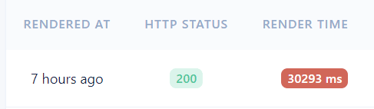
- In Render History or CDN Analytics, render times for the affected page are highlighted in red
Step 2: Apply a fix
Choose one of the following options. Option B gives more precise control for pages with asynchronous content.
Option A — Increase the rendering timeout
- Go to Advanced Settings → Rendering Timeout.
- Increase the timeout value.
- Save the setting.

ℹ️ Increasing the timeout extends the maximum wait time for all pages — not just the affected ones. If only specific pages are slow to load, Option B may be more appropriate.
Option B — Use window.prerenderReady
Tell Prerender exactly when your page has finished loading rather than waiting for a fixed timeout duration.
- Add the following snippet to the
<head>section of your page:
<script>window.prerenderReady = false;</script>
- Set
window.prerenderReady = true;only after all asynchronous content has loaded — for example, after all API calls have completed and the page is fully rendered.
ℹ️ window.prerenderReady is the most reliable approach for pages that load content asynchronously. It tells Prerender precisely when to capture the page instead of relying on a fixed timeout.
Step 3: Recache and check
After applying Option A or Option B, wait one hour, then recache an affected page and check that all elements are now present.
Verify your changes
After applying any of the fixes above, confirm your cached pages are complete.
- Wait at least one hour after saving any dashboard setting.
- Manually recache one of the affected pages from your Prerender dashboard.
- Compare the cached version against the live page — all elements should now match.
If elements are still missing after recaching, more than one issue may be affecting the same page — for example, a lazy loading issue and a timeout issue can occur simultaneously. See empty or partially rendered pages for additional troubleshooting guidance, or check the cached version of your URL to inspect what Prerender is actually serving.
💬 Still need help?
If elements are still missing after working through these steps, our support team can help diagnose what's happening on your specific pages.
→ Contact us at support@prerender.io