---
title: How do I integrate Prerender.io with Nginx?
description: Integrate Prerender.io with your Nginx server to serve pre-rendered HTML to AI crawlers and search engines. Covers SPA, PHP, and reverse proxy setups.
---
[Skip to content](https://docs.prerender.io/docs/nginx-1#main-content)

Open main navigation
Close main navigation
- [Contact us](mailto:support@prerender.io)
[Contact us](mailto:support@prerender.io)
How can we help you?
- There are no suggestions because the search field is empty.
1. [Knowledge Base - Prerender.io](https://docs.prerender.io/docs?hsLang=en)
2. [Integrations](https://docs.prerender.io/docs/integrations?hsLang=en)
3. [Prerender.io officially maintained integration](https://docs.prerender.io/docs/integrations?hsLang=en#prerender-io-officially-maintained-integration)
May 23, 2026
# How do I integrate Prerender.io with Nginx?
## Route AI crawler and search engine traffic through Prerender.io by editing your Nginx config — covers SPA, PHP, and reverse proxy setups.
#### **TL;DR**
To integrate Prerender.io with Nginx, add routing rules to your `nginx.conf` that intercept requests from AI crawlers and search engines and forward them to Prerender.io's rendering service. The integration follows the same core pattern across three setups: [Single Page Application (SPA)](https://docs.prerender.io/docs/nginx-1#SPA), [PHP application](https://docs.prerender.io/docs/nginx-1#PHP), and [Reverse proxy](https://docs.prerender.io/docs/nginx-1#reverser-proxy).
ℹ️ Not sure which Nginx setup matches your stack? Ask [**Nexus, your AI integration assistant**](https://docs.prerender.io/docs/nexus-prerender.ios-ai-powered-integration-assistant-0?hsLang=en), inside your Prerender.io dashboard. Describe your setup and Nexus will recommend the right path and walk you through it.
👉 All example configurations are available in the [Prerender-nginx GitHub repository](https://github.com/prerender/prerender-nginx).
---
### Step 1: Create a Prerender.io account.
If you don't already have an account, create one at [Prerender.io](https://prerender.io). Your account gives you access to your dashboard, your token, and cached page reports.
### Step 2: Copy your Prerender.io token.
In your Prerender.io dashboard, go to **Security and Access \> [Prerender Token](http://dashboard.prerender.io/security/prerender-token)**. Copy your token—you will need it in a later step.
### Step 3: Back up your Nginx config file.
Before making any changes, create a backup of your `nginx.conf` file. This lets you restore your previous configuration if anything goes wrong.
⚠️ Always back up your `nginx.conf` before editing it. A configuration error can bring your server down.
---
Follow the steps for your use case:
- [Single Page Application (SPA)](https://docs.prerender.io/docs/nginx-1#SPA)
- [PHP application](https://docs.prerender.io/docs/nginx-1#PHP)
- [Reverse proxy](https://docs.prerender.io/docs/nginx-1#reverser-proxy)
---
### **Single Page Application (SPA)**
Video Guide:
### Step 4: Open the SPA config on GitHub.
Open the [Nginx SPA config](https://github.com/prerender/prerender-nginx/blob/master/nginx.conf) in the Prerender-Nginx repository. Keep this tab open—you will copy sections from it in the steps below.
### Step 5: Add the map blocks to your http block.
Copy the `map{...}` sections from the GitHub config and paste them inside the `http{...}` block in your `nginx.conf` file.
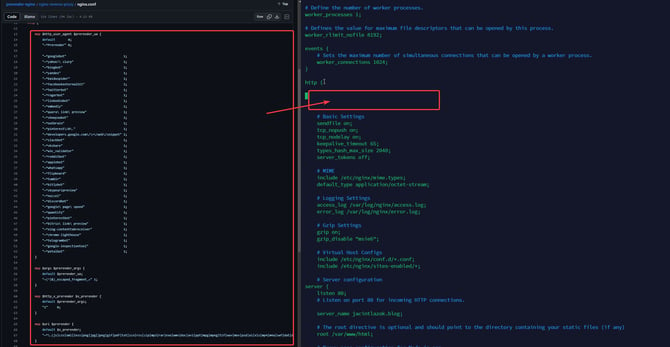
### Step 6: Add the Prerender rewrite to your location block.
Add the following code inside your `location / {...}` block:
```
if ($prerender = 1) {
```
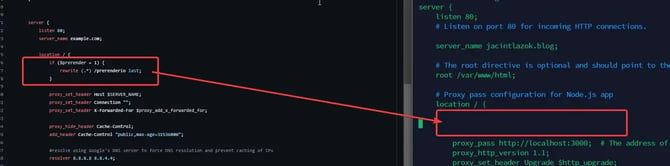
### Step 7: Add the Prerender location block.
Add the `location /prerenderio {...}` block to your server block, directly after the `location / {...}` block.
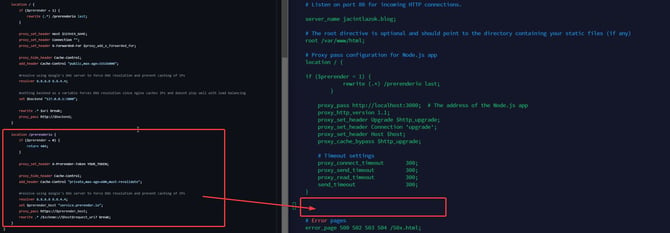
### Step 8: Replace YOUR\_TOKEN with your Prerender.io token.
Inside the `location /prerenderio {...}` block, replace `YOUR_TOKEN` with the token you copied in Step 2.
### Step 9: Test your Nginx config and restart.
Run an Nginx configuration test
```
nginx -t
```
ℹ️ If the test passes, restart Nginx. If it fails, check the error output and compare your config against the [SPA example on GitHub](https://github.com/prerender/prerender-nginx/blob/master/nginx.conf).
---
### PHP application
Video Guide:
### Step 4: Open the PHP config on GitHub.
Open the [Nginx PHP config](https://github.com/prerender/prerender-nginx/blob/master/nginx-php/nginx.conf) in the prerender-nginx repository. Keep this tab open — you will copy sections from it in the steps below.
### Step 5: Add the map blocks in front of your server block.
Copy the `map{...}` sections from the GitHub config and paste them in front of the `server{...}` block in your `nginx.conf` file.
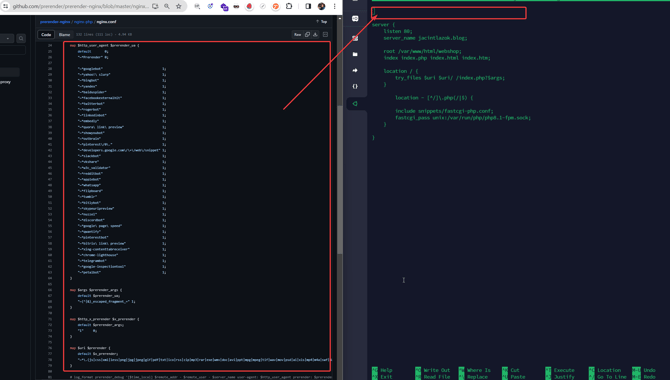
### Step 6: Add the Prerender rewrite to your location block.
Replace the contents of your `location / {...}` block with the following:
```
location / { if ($prerender = 1) { rewrite (.*) /prerenderio last; } rewrite (.*) /index.php$1 last; }
```
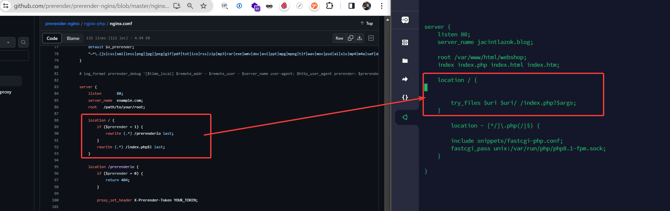
### Step 7: Add the Prerender.io location block.
Add the `location /prerenderio {...}` block to your server block, directly after the `location / {...}` block.
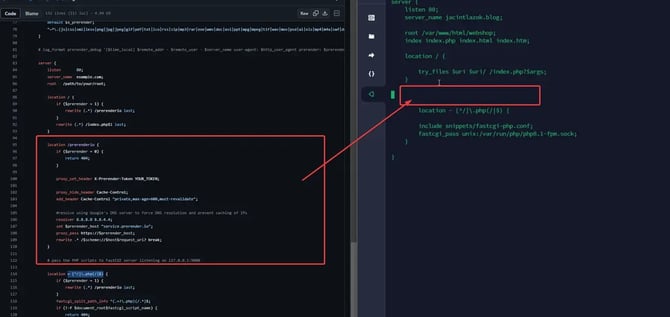
### Step 8: Replace YOUR\_TOKEN with your Prerender.io token.
Inside the `location /prerenderio {...}` block, replace `YOUR_TOKEN` with the token you copied in Step 2.
### Step 9: Add the Prerender check to your PHP location block.
Inside your `~ [^/].php(/|$)` location block, add the following `if` statement:
```
if ($prerender = 1) {
```
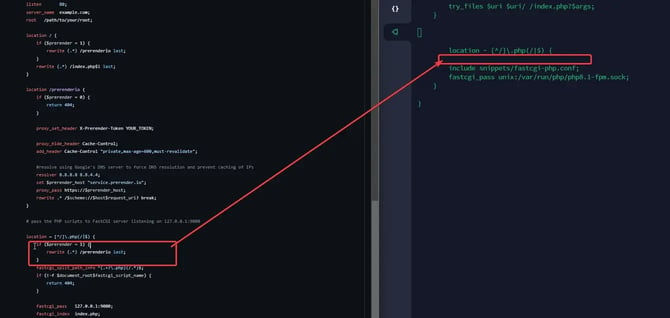
### Step 10: Test your Nginx config and restart.
Run an Nginx configuration test:
```
nginx -t
```
ℹ️ If the test passes, restart Nginx. If it fails, check the error output and compare your config against the [PHP example on GitHub](https://github.com/prerender/prerender-nginx/blob/master/nginx-php/nginx.conf).
---
### Reverse Proxy
Video Guide:
### Step 4: Open the reverse proxy config on GitHub.
Open the [Nginx reverse proxy config](https://github.com/prerender/prerender-nginx/blob/master/nginx-reverse-proxy/nginx.conf) in the prerender-nginx repository. Keep this tab open — you will copy sections from it in the steps below.
### Step 5: Add the map blocks to your http block.
Copy the `map{...}` sections from the GitHub config and paste them inside the `http{...}` block in your `nginx.conf` file.
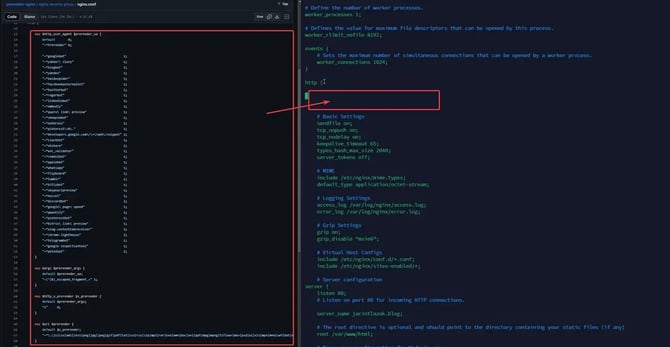
### Step 6: Add the Prerender rewrite to your location block.
Add the following code inside your `location / {...}` block:
```
if ($prerender = 1) { rewrite (.*) /prerenderio last; }
```
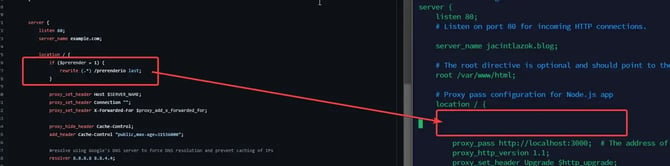
### Step 7: Add the Prerender.io location block.
Add the `location /prerenderio {...}` block to your server block, directly after the `location / {...}` block.
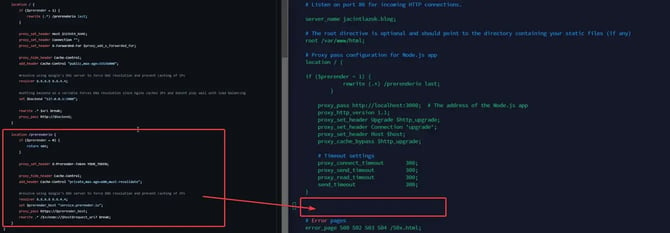
### Step 8: Replace YOUR\_TOKEN with your Prerender.io token.
Inside the `location /prerenderio {...}` block, replace `YOUR_TOKEN` with the token you copied in Step 2.
### Step 9: Test your Nginx config and restart.
Run an Nginx configuration test:
```
nginx -t
```
ℹ️ If the test passes, restart Nginx. If it fails, check the error output and compare your config against the [reverse proxy example on GitHub](https://github.com/prerender/prerender-nginx/blob/master/nginx-reverse-proxy/nginx.conf).
---
### Verify your integration is working
Confirm that Prerender.io is correctly intercepting crawler requests and serving rendered HTML to AI crawlers and search engines.
➡️ See [Verify your integration](https://docs.prerender.io/docs/how-to-test-your-site-after-you-have-successfully-validated-your-prerender-integration?hsLang=en) for step-by-step instructions.
✅ Your integration is working when cached pages appear in your Prerender.io dashboard within 2 to 5 minutes of your first crawler request.
If you see the error "Prerender Integration Not Detected," refer to the [troubleshooting guide for integration detection errors](https://docs.prerender.io/docs/what-should-i-do-if-i-receive-a-prerender-integration-not-detected-error?hsLang=en) to resolve the issue.
---
### Related articles
- [How do I integrate Prerender with a Single Page Application?](https://docs.prerender.io/docs/integration-with-react-angular-vue?hsLang=en)
- [How do I integrate Prerender with Cloudflare Workers?](https://docs.prerender.io/docs/cloudflare-integration-v2?hsLang=en)
- [How to verify your Prerender.io integration is working](https://docs.prerender.io/docs/how-to-test-your-site-after-you-have-successfully-validated-your-prerender-integration?hsLang=en)
- [Why am I seeing 403 or 404 errors after integrating Prerender.io?](https://docs.prerender.io/docs/why-am-i-seeing-403-or-404-errors-after-integrating-prerender?hsLang=en)
💬 **Still need help?** If you have questions about your Nginx integration or run into errors, our support team can help. → Contact us at [support@prerender.io](mailto:support@prerender.io)
- [How Prerender.io works](https://docs.prerender.io/docs/how-prerender-io-works?hsLang=en)
- [Getting started](https://docs.prerender.io/docs/getting-started?hsLang=en)
- [Integrations](https://docs.prerender.io/docs/integrations?hsLang=en#main-content)
- [Prerender.io officially maintained integration](https://docs.prerender.io/docs/integrations?hsLang=en#prerender-io-officially-maintained-integration)
- [FAQ](https://docs.prerender.io/docs/integrations?hsLang=en#faq)
- [Get Found on AI & Search](https://docs.prerender.io/docs/get-found-on-ai-search?hsLang=en#main-content)
- [Google Search Performance](https://docs.prerender.io/docs/get-found-on-ai-search?hsLang=en#google-search-performance)
- [Troubleshooting](https://docs.prerender.io/docs/troubleshooting?hsLang=en)
- [Billing & Account](https://docs.prerender.io/docs/billing-account?hsLang=en#main-content)
- [Plans & Subscriptions](https://docs.prerender.io/docs/billing-account?hsLang=en#plans-subscriptions)
- [Renders, Usage & Limits](https://docs.prerender.io/docs/billing-account?hsLang=en#renders-usage-limits)
- [Payments & Invoices](https://docs.prerender.io/docs/billing-account?hsLang=en#payments-invoices)
- [Account Access & Security](https://docs.prerender.io/docs/billing-account?hsLang=en#account-access-security)
- [Features](https://docs.prerender.io/docs/features?hsLang=en)
[](http://prerender.io)
304 S. Jones Blvd #1205, Las Vegas, NV 89107
[mailto:support@prerender.io](mailto:support@prerender.io)
Copyright © 2025, Prerender.io