---
title: How do I integrate Prerender with Netlify?
description: Install the Prerender extension on Netlify to make your JavaScript site readable by AI crawlers and search engines. Setup takes about 10 minutes.
---
[Skip to content](https://docs.prerender.io/docs/how-do-i-integrate-prerender-with-netlify#main-content)

Open main navigation
Close main navigation
- [Contact us](mailto:support@prerender.io)
[Contact us](mailto:support@prerender.io)
How can we help you?
- There are no suggestions because the search field is empty.
1. [Knowledge Base - Prerender.io](https://docs.prerender.io/docs?hsLang=en)
2. [Integrations](https://docs.prerender.io/docs/integrations?hsLang=en)
3. [Prerender.io officially maintained integration](https://docs.prerender.io/docs/integrations?hsLang=en#prerender-io-officially-maintained-integration)
May 20, 2026
# How do I integrate Prerender with Netlify?
## Install the Prerender extension from the Netlify Extensions marketplace to make your JavaScript site fully readable by AI crawlers and search engines.
**TL;DR**
Connect Prerender.io to your Netlify site by installing the Prerender.io extension from the Netlify Extensions marketplace and adding your Prerender.io token to the extension settings. No code changes are required. The extension handles request routing directly. Setup takes about 10 minutes.
---
ℹ️ **Not sure which integration fits your stack?** Ask **Nexus, your AI integration assistant** in your Prerender dashboard: describe your setup and Nexus will recommend the right approach.
---
#### Step 1: Create a Prerender account and copy your token
1. If you don't have a Prerender account yet, [sign up at prerender.io/partners/netlify](https://prerender.io/partners/netlify/) and choose a plan.
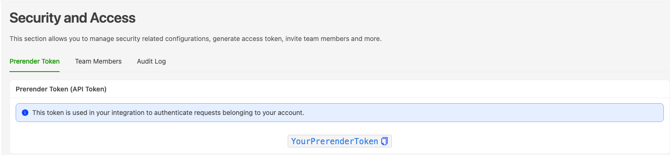
2. Log in to your [Prerender dashboard](https://dashboard.prerender.io/security/prerender-token) and go to **Security & Access → Prerender Token**.
3. Copy your Prerender.io token. You will add it to the extension in Step 4.
> 
---
#### Step 2: Open Extensions in the Netlify dashboard
1. Log in to your Netlify account.
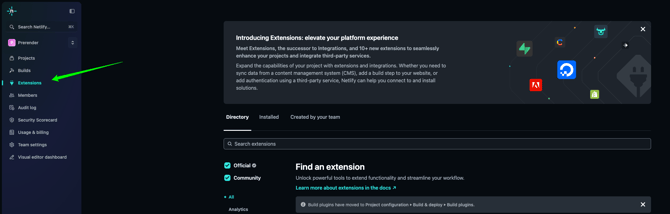
2. Go to **Extensions** in the Netlify UI.
> ****
---
#### Step 3: Install the Prerender.io extension and choose your site
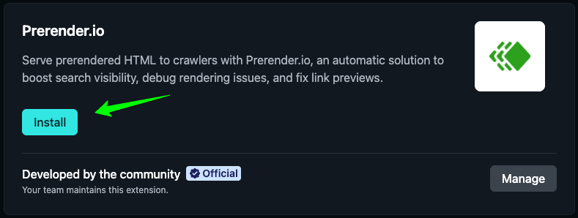
1. Search for **"Prerender.io Extension"** and click **Install Extension**.
2. Choose the site you want to enable Prerender.io on and confirm the installation.
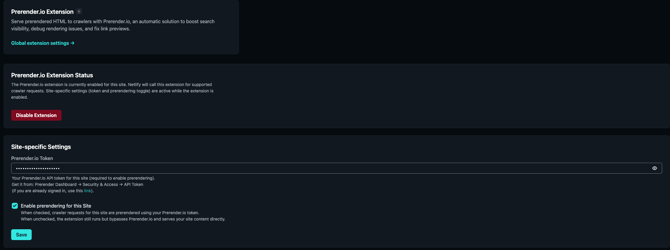
After installation, three controls become available for the selected site:
- **Disable Extension** removes Prerender.io functionality globally for this site.
- **Enable Prerendering** toggles prerendering on or off per site, while keeping the extension installed.
- **Prerender API Token** is the input field for your Prerender.io token.
---
#### Step 4: Enable prerendering and add your token
1. Check **Enable Prerendering** to activate prerendering for this site.
2. Paste your Prerender token from Step 1 into the **Prerender API Token** field.
3. Save the settings.
**
---
#### Step 5: Re-deploy your Netlify project.
If your Netlify project was already published before you enabled the Prerender.io extension, you must trigger a new deployment for the extension to take effect. The extension does not activate automatically on an existing deployment.
1. In your Netlify dashboard, go to **Deploys** for your site.
2. Click **Trigger deploy**, then **Deploy site** (or push a new commit to trigger a build).
⚠️ Skipping this step means the extension will not work until your next deployment. If you just created a new Netlify project and have not published it yet, the extension will activate on your first deploy automatically.
#### Step 6: Verify your integration.
Confirm that Prerender.io is correctly intercepting AI crawler and search engine requests before you consider the setup complete.
Follow the [full verification guide](https://docs.prerender.io/docs/how-to-test-your-site-after-you-have-successfully-validated-your-prerender-integration?hsLang=en) for step-by-step instructions using Chrome DevTools.
✅ Your integration is working when cached pages appear in your Prerender.io dashboard within a few minutes of your first crawler request, and Prerender.io response headers are visible in the verification tool.
If you do not see Prerender.io headers in the verification output, check that **Enable Prerendering** is toggled on, that your token is saved correctly in the extension settings, and that you have re-deployed your project after enabling the extension.
### Understanding the extension controls
**Disable Extension** turns off the entire extension for the site. Prerender.io is removed from the request flow entirely. Use this if you want to fully remove Prerender.io from a Netlify site without uninstalling the extension.
**Enable Prerendering** is a per-site runtime toggle. The extension stays installed, but prerendering is turned on or off for that site. Use this to temporarily pause prerendering, for example during site maintenance, without removing the extension.
---
Related articles
- [Available integrations](https://docs.prerender.io/docs/what-integrations-are-already-out-there?hsLang=en)
- [How to test your Prerender.io integration](https://docs.prerender.io/docs/how-to-test-your-site-after-you-have-successfully-validated-your-prerender-integration?hsLang=en)
- [How do I integrate Prerender.io on shared hosting?](https://docs.prerender.io/docs/how-can-i-integrate-prerender-if-im-using-a-hosting-platform-that-doesnt-allow-direct-server-access?hsLang=en)
- [Plan options and how to find the best plan](https://docs.prerender.io/docs/plan-options-and-how-to-find-the-best-plan?hsLang=en)
---
💬 **Still need help?** If you are running into issues with your Netlify integration, our support team can help you diagnose what is going wrong. → Contact us at [support@prerender.io](mailto:support@prerender.io)
- [How Prerender.io works](https://docs.prerender.io/docs/how-prerender-io-works?hsLang=en)
- [Getting started](https://docs.prerender.io/docs/getting-started?hsLang=en)
- [Integrations](https://docs.prerender.io/docs/integrations?hsLang=en#main-content)
- [Prerender.io officially maintained integration](https://docs.prerender.io/docs/integrations?hsLang=en#prerender-io-officially-maintained-integration)
- [FAQ](https://docs.prerender.io/docs/integrations?hsLang=en#faq)
- [Get Found on AI & Search](https://docs.prerender.io/docs/get-found-on-ai-search?hsLang=en#main-content)
- [Google Search Performance](https://docs.prerender.io/docs/get-found-on-ai-search?hsLang=en#google-search-performance)
- [Troubleshooting](https://docs.prerender.io/docs/troubleshooting?hsLang=en)
- [Billing & Account](https://docs.prerender.io/docs/billing-account?hsLang=en#main-content)
- [Plans & Subscriptions](https://docs.prerender.io/docs/billing-account?hsLang=en#plans-subscriptions)
- [Renders, Usage & Limits](https://docs.prerender.io/docs/billing-account?hsLang=en#renders-usage-limits)
- [Payments & Invoices](https://docs.prerender.io/docs/billing-account?hsLang=en#payments-invoices)
- [Account Access & Security](https://docs.prerender.io/docs/billing-account?hsLang=en#account-access-security)
- [Features](https://docs.prerender.io/docs/features?hsLang=en)
[](http://prerender.io)
304 S. Jones Blvd #1205, Las Vegas, NV 89107
[mailto:support@prerender.io](mailto:support@prerender.io)
Copyright © 2025, Prerender.io