
TL;DR
The Cache Manager in your Prerender dashboard is where you control what gets cached and for how long. You can add up to 100 URLs manually, set a global or pattern-based cache expiration, clear cached pages by wildcard or in bulk, and review each URL's status, source, device type, and SEO score. All of these actions are available under Cache Manager in your Prerender dashboard's left sidebar.
Adding URLs to the cache
There are several ways a URL enters the cache — through AI crawler requests, a sitemap, the Recache API, or manually from the dashboard. To add URLs manually, open Cache Manager in your Prerender dashboard and click Add URLs. You can add up to 100 URLs at a time and choose to cache the desktop version, the mobile-optimized version, or both.
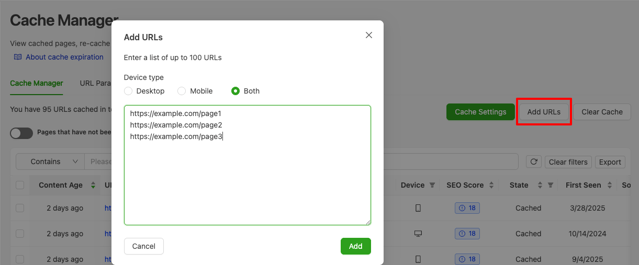
URLs added this way appear in the Cache Manager table with the source Site. For a full explanation of all source types, see the Cache Manager table section below.
Cache expiration
Cache expiration controls how long a rendered page stays in the cache before Prerender re-renders it. If you set the expiration to one day, Prerender re-caches each URL every 24 hours. Shorter durations work well for pages that update frequently; longer durations are appropriate for stable, rarely-changing content.
To set your cache expiration, open Cache Manager in your Prerender dashboard and click Cache Expiration. Scroll down to choose your desired duration, then click Apply to save. The new expiration applies after each URL's next scheduled re-cache — it does not trigger an immediate re-render of already-cached pages.
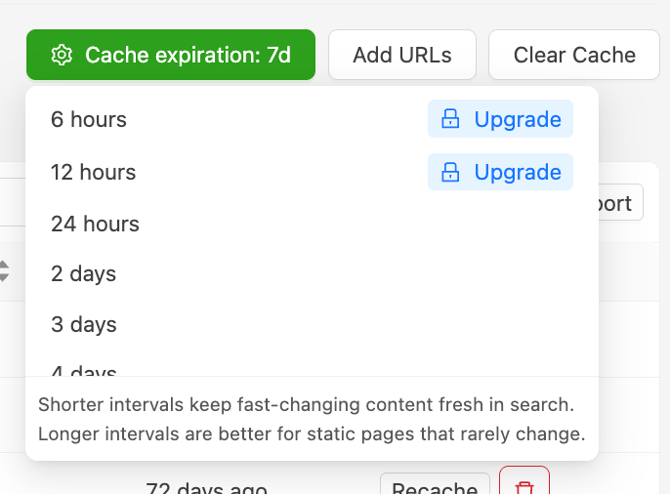
The expiration range available to you depends on your plan:
| Plan | Cache expiration options |
|---|---|
| Starter | Fixed global setting (24h–7 days) |
| Growth | Fixed global setting (12h–14 days) |
| Pro | Dynamic pattern/domain-based or global (6h–30 days) |
| Enterprise Plus | Dynamic pattern/domain-based or global (6h–30 days) |
ℹ️ On Pro and above, cache expiration can be configured dynamically by URL pattern or domain instead of applying one global setting to all cached URLs. If your current plan doesn't include the duration or feature you need, see Prerender's pricing page for upgrade options.
Clearing the cache
The Cache Clear button lets you remove URLs from the cache using wildcard patterns, or clear all cached URLs at once. For a full walkthrough of how cache clearing works and how to use wildcard patterns, see How to purge your cache.
Cache Manager table
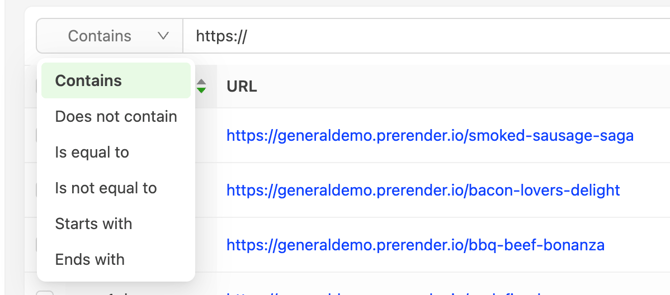
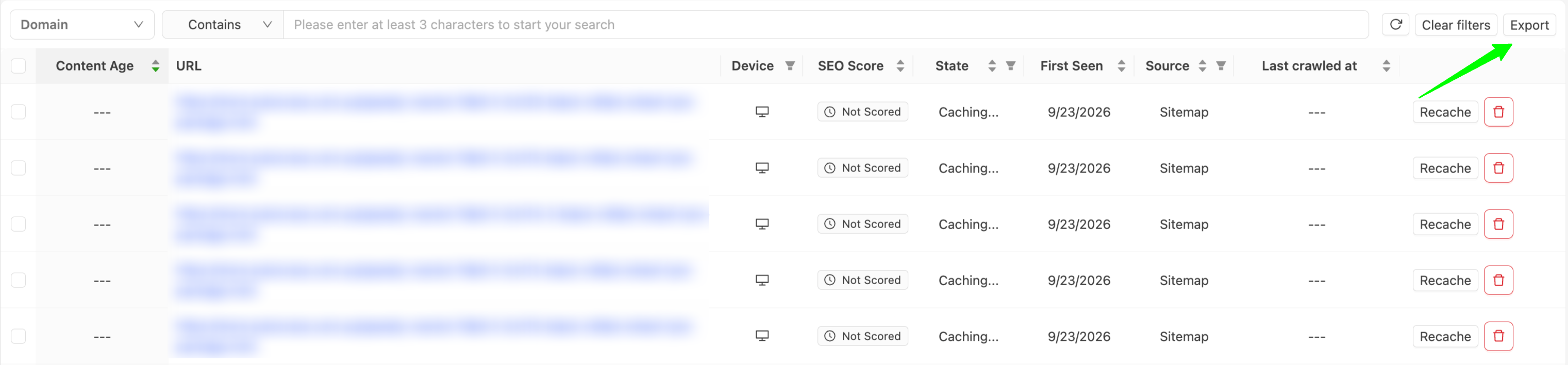
The Cache Manager table shows every URL in your cache and lets you filter, export, recache, or remove them.
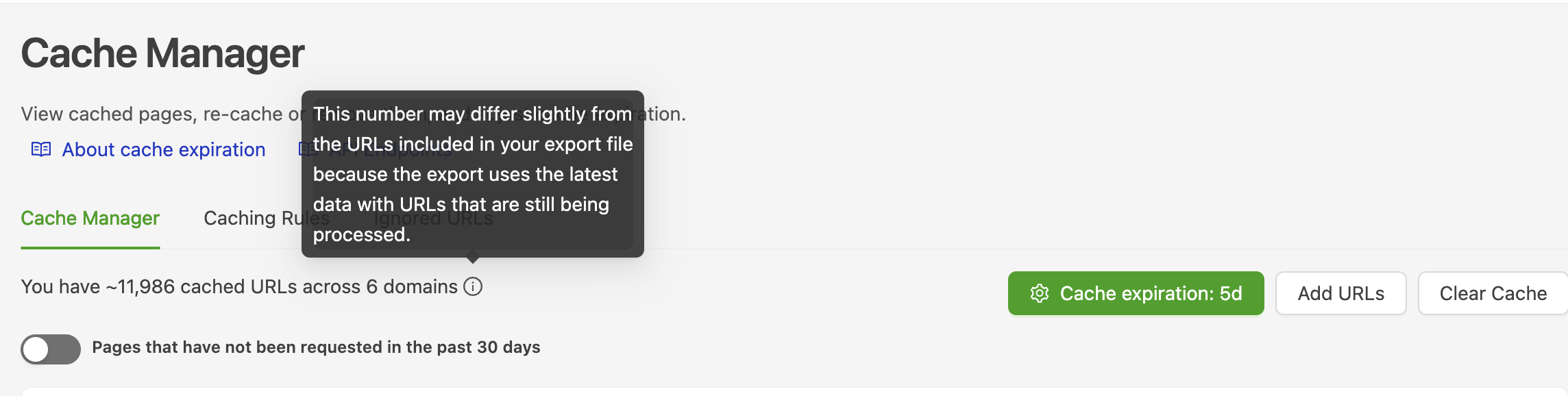
At the top of the table, "You have X URLs from Y domains cached" gives an approximate count of your cached URLs. This number may differ slightly from your CSV export — it's pulled from a different data source than the export, so small mismatches are expected rather than a sign of missing or lost data. Hover the ⓘ next to the count for the same explanation in-app.
Column reference:
- Content age — Time elapsed since the page was last cached or re-cached. Displays
--if the page is currently in a rendering queue and not yet cached. - URL — The cached page address. Each URL returning a
200status code is cached separately. If mobile-optimized rendering is enabled, the same URL may appear twice — once for desktop and once for mobile. - Device — Desktop or mobile, indicated by icon.
- SEO score — Prerender checks the cached HTML against SEO best practices and assigns a score. See How the SEO score feature works for details.
- State — One of three values: Cached, Caching..., or Recaching...
- First seen — The date the URL was first added to the cache.
- Source — How the URL was first added. This value does not change when the page is automatically re-cached:
- Site — Added manually from the dashboard via the Add URLs button
- Sitemap — Discovered via your sitemap, which Prerender crawls periodically
- Recache API — Added via the Recache API endpoint (Advanced and higher plans)
- CDN — An AI crawler or search engine requested an uncached page; Prerender rendered it on demand and cached it because it returned a
200status code
- Last crawled — The most recent date the page was served to an AI crawler or search engine. If the source is CDN and this column shows
--, the first seen date is also the last crawled date. - Row actions — Use the checkboxes to select multiple URLs and recache, remove, or preview them. Individual recache and remove buttons are also available on each row.
Exporting the table: Click Export to download the current view as a CSV. Filters applied before exporting (e.g. by source, device, or state) carry through to the exported file, so the export reflects only what's currently filtered on screen, not your entire cache.
💬 Still need help?
If you have questions about managing your cache or understanding what's showing in your Cache Manager table, our support team can help.
→ Contact us at support@prerender.io