
TL;DR
To cache specific URLs in Prerender.io, use the Cache Manager in your dashboard for up to 100 URLs, or the `/recache` API for up to 1,000 URLs per call. Both methods let you target desktop, mobile, or both device types.
Selectively caching URLs keeps your render usage efficient and gets updated content in front of AI crawlers and search engines quickly, without the cost of a full cache refresh.
There are two methods. Choose the one that fits your workflow:
- Cache Manager (dashboard): manual, up to 100 URLs, no API access required.
/recacheAPI: programmatic, up to 1,000 URLs per call
Method A: cache URLs via the dashboard
Use this method if you have fewer than 100 URLs to cache and prefer a manual workflow.
Step 1: log in and open your Prerender dashboard.
Go to your Prerender dashboard and log in with your account credentials.
Step 2: open Cache Manager.
Click Cache Manager in the left-hand menu.
Step 3: click Add URLs.
Click the Add URLs button in the top-right corner of the Cache Manager.

Step 4: paste your URLs and choose a device type.
In the panel that opens, paste your URLs one per line. The dashboard accepts up to 100 URLs at a time.
Then select Desktop, Mobile, or Both from the device type options.
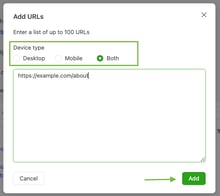
ℹ️ If your site uses device-specific rendering (for example, a separate mobile layout), choose Both to ensure AI crawlers receive the correct version. See Desktop vs. Mobile rendering for guidance on when device type matters.
Step 5: submit the list.
Click Add to start the caching process. Prerender queues the URLs immediately.
Method B: cache URLs via the /recache API
Use this method if you need to cache more than 100 URLs, or want to automate caching as part of a deployment workflow.
Step 1: copy your Prerender.io token.
In your Prerender.io dashboard, go to Settings and copy your token. You will need it to authenticate requests to the API.
Step 2: send a POST request to the /recache endpoint.
Submit your list of URLs to the /recache endpoint. The API accepts up to 1,000 URLs per call.
See the full request format, authentication details, and response codes in the Prerender.io API docs under the Recache section.
ℹ️ If your site updates frequently, consider building a deployment hook that calls the /recache API with only the affected URLs. This keeps your render usage predictable and avoids unnecessary full cache clears. You can also use ignored URLs and query parameters to exclude pages that do not need pre-rendering.
Verify your cached URLs
After adding URLs via the dashboard or API, confirm they have been cached successfully.
In your Prerender.io dashboard, open Cache Manager and search for one of the URLs you submitted. A cached entry should appear within a few minutes of the request being processed.
✅ Your URLs are cached when they appear in Cache Manager with a recent cache date. AI crawlers and search engines will receive the freshly rendered version on their next visit.
If your URLs are not appearing after a few minutes, see Why are some of my pages not getting cached? for troubleshooting steps.
Related Articles / FAQs
- What can I do with the Prerender.io REST API?
- How do I stop Prerender from caching certain URLs?
- Desktop vs. Mobile rendering
- Why are some of my pages not getting cached?
💬 Still need help? If you have questions about caching specific URLs or using the /recache API, our support team can help. → Contact us at support@prerender.io