
Custom cache expiration is only available on Pro and Enterprise Plus (custom) plans.
TL;DR
Custom cache expiration lets you define how often Prerender.io recaches your pages at two levels: a domain-wide default and pattern-based rules for specific URL paths. Set a broad expiration for your entire domain, then create rules for sections that need shorter or longer intervals. This feature is available on Pro and Enterprise plans.
How cache expiration rules are evaluated
When Prerender.io evaluates a URL, it checks expiration settings in this order:
- Pattern-based rule. If the URL matches a pattern rule, that rule's expiration applies.
- Domain-level expiration. If no pattern rule matches, the domain's default expiration applies.
- Account-level expiration. If no domain-level setting exists, the account-wide default applies.
The most specific setting always wins.
Domain-level cache expiration
Domain-level expiration sets a default recache interval for all pages under a domain. It applies to any URL that does not match a pattern-based rule.
Use this when:
- You are onboarding a new site and want a default cache policy before creating pattern rules.
- Your domain has mostly stable content where a single interval works.
.
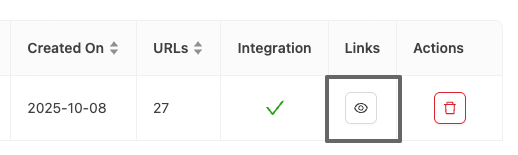
Step 1: Open Domain Manager and select your domain.
-
Log into your dashboard and open Domain Manager.

- Click the view icon (👁️) next to your target domain
- Scroll to Scheduler Settings.
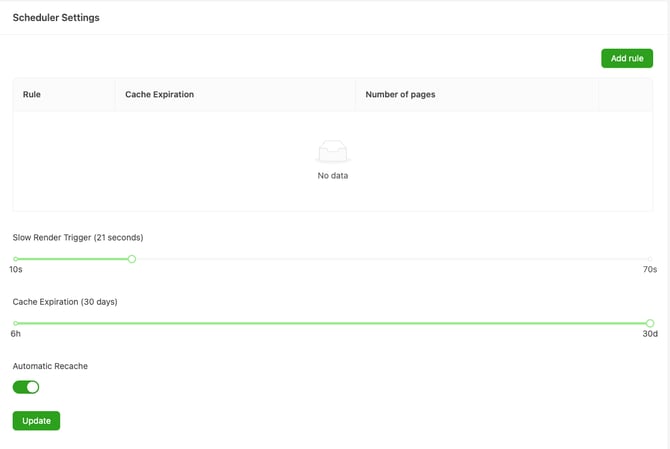
Step 2: Set your domain-level cache expiration.
- Move the slider to your preferred value (typically 6 hours to 30 days).
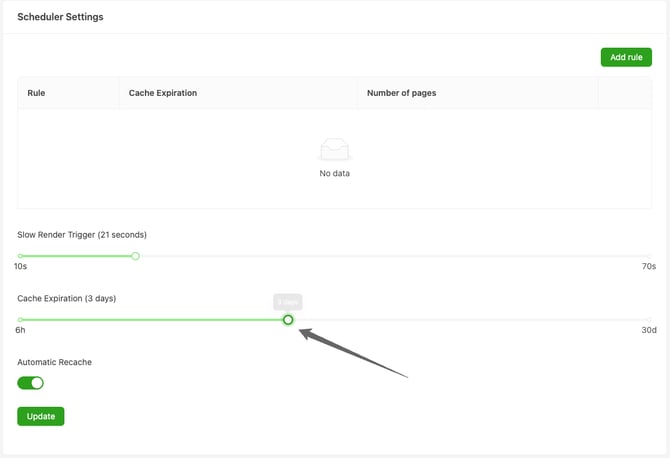
- Click on Update

All pages under this domain that do not match a pattern rule will now recache at this interval.
Pattern-based cache expiration
Pattern-based rules let you set different cache expiration intervals for specific URL paths. This is useful when different sections of your site change at different rates.
Examples:
/blog/*with a 12-hour expiration keeps news content fresh./products/with a 6-hour expiration keeps pricing accurate.- A static
/about/section can use the longer domain-level default.
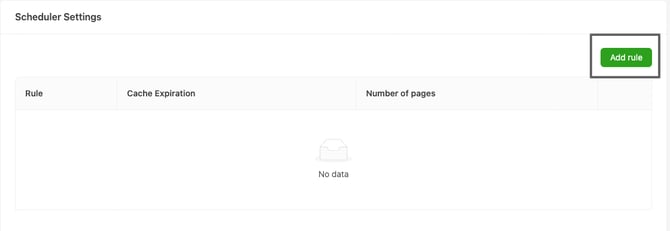
Step 3: create a pattern-based rule.
- In Scheduler Settings, click Add Rule. A modal appears.
-
In the Rule field, enter the URL pattern you want to match.
- Use the slider to set cache expiration for matched URLs
-
Click Save
-
Click Add Rule. A modal appears, add your pattern.
Pattern matching options
Substring match. Enter a string that appears in your target URLs. Prerender.io uses a "contains" match.
/products/matches any URL containing/products/./blog/2024/matches all posts from 2024.?category=electronicsmatches URLs with that query parameter.
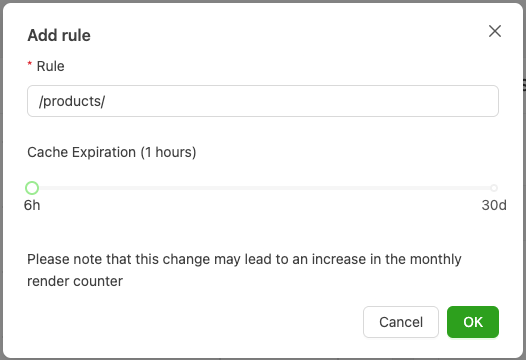
Wildcard match. Use * to match any sequence of characters.
/blog/*/commentsmatches all comment pages under blog posts./products/*/reviewsmatches all product review pages.-
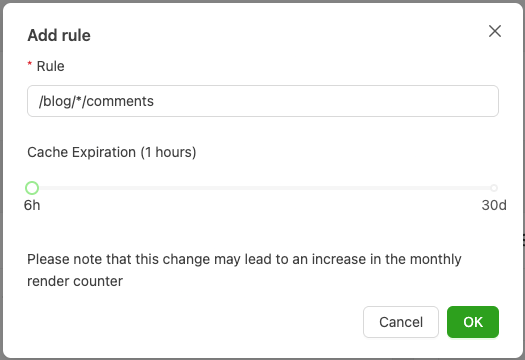
ℹ️ Wildcard patterns are converted to regular expressions internally (* becomes .*). Non-wildcard patterns use a SQL LIKE match with % on both sides (e.g., /products/ matches any URL containing /products/). Pattern matching may be case-sensitive depending on your configuration.
Validation rules
When you save a rule, Prerender.io validates it:
- 50% cap. A rule cannot affect more than 50% of your domain's cached URLs.
- Plan limits. Pro plans allow 5 rules per domain. Enterprise plans allow 10.
- No duplicates. Each pattern must be unique per domain.
If validation fails, you may see messages like:
- "Setting affects more than 50% of urls"

-
"Max rules per domain is already reached"

-
"Setting with the same rule already exists"

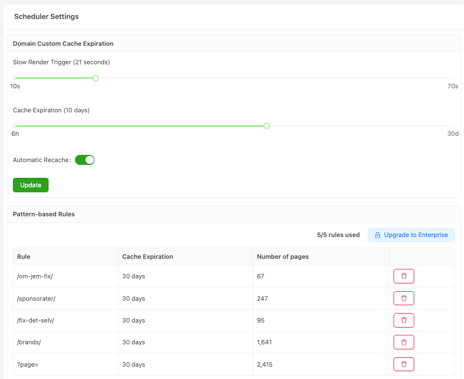
Step 4: review your rules in the Scheduler Settings table.
After adding rules, they appear in a table:
| Column | Description |
|---|---|
| Rule | The URL pattern you defined |
| Cache Expiration | The recache interval selected |
| Number of Pages | How many cached URLs currently match this pattern |
| Actions | Delete the rule when it’s no longer needed |
How new rules interact with your existing cache schedule
When you create or update a cache expiration rule, the new setting does not immediately trigger a recache. Each cached page is already following the schedule established by its previous expiration setting.
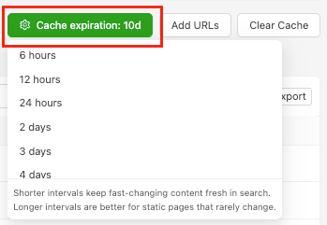
Each page has a next scheduled recache based on the interval that applied when it was last rendered. You can see this schedule in Caching Queue → Automated Queue, where cached pages are listed with their next recache time.
After a page completes its current recache cycle, it begins following the new expiration rule. From that point onward, Prerender.io recalculates future recache timings based on your updated settings.
This means:
- You may still see URLs recaching according to their original interval until their current cycle completes.
- The transition happens gradually, not instantly.
Render count impact
Shorter cache expiration intervals increase your render count. For example, 100 URLs with a 1-day expiration recache twice daily (desktop and mobile), resulting in approximately 6,000 renders per month with mobile rendering enabled.
ℹ️ Prerender.io renders both a desktop and a mobile version of each page by default. Each version counts as a separate render. If mobile rendering is disabled, the count in the example above drops to approximately 3,000 renders per month.
Role Permissions
| Role | View Rules | Create Rules | Delete Rules |
|---|---|---|---|
| Owner/Admin | ✓ | ✓ | ✓ |
| Member | ✓ | ✓ | ✓ |
| Billing Manager | ✓ | ✗ | ✗ |
| Guest | ✓ | ✗ | ✗ |
Troubleshooting
| Issue | Cause | Solution |
|---|---|---|
| “Setting affects more than 50% of URLs” | Rule too broad | Make it more specific or split it into smaller rules |
| Pattern not matching expected URLs | Case sensitivity or incorrect pattern | Verify capitalization and wildcard placement |
| “Add Rule” button disabled | Reached plan limit or missing permissions | Upgrade your plan or contact support |
Related articles
- How does cache expiration work in Prerender.io?
- How do I stop Prerender.io from caching certain URLs?
- How Prerender.io works
💬 Still need help? If your cache expiration rules are not behaving as expected, our support team can help you diagnose the issue. Contact us at support@prerender.io